First off, thank you for coming back. Yesterday was one hell of a day. You learned what an AI agent actually is, and we went through the core concepts that define the word agency: behaviour, tools, knowledge and skills. You deployed your agent to Instagram, WhatsApp, Telegram and your website, and I walked you through the Second Brain OS CRM, where every channel lands in a single unified inbox and you decide when the AI responds and when a human takes over.
If any of that sounds alien or unfamiliar, pause right now. Do not go forward. Slow is controlled, and controlled is fast. That is what one of my instructors taught me and I continue to live by it. Go back to yesterday’s guide, take your time, and get your agent live on at least two channels where your actual leads come from. Outside the US I recommend Instagram, WhatsApp and website; inside the US, voice, Instagram and website. Telegram only if your market genuinely lives there.
Today is a short, precise day with depth on one topic: the system prompt, or the behaviour of the AI, with two goals. We want it humanised, and we want it to use tools effectively when they arrive tomorrow. Today is more conceptual than hands-on, and at the end I give you a hack that automates the whole build. But it is best you understand the thinking first, because a generated prompt you don’t understand is a prompt you can’t optimise.
The five parts of a humanised system prompt
Part 1a: Business knowledge
Business knowledge in the prompt is for things that are repeatedly required but rarely change: your office or in-person service address, the specialists on your team, small stable company facts. As long as it is short, shallow and stable, it lives here as one section.
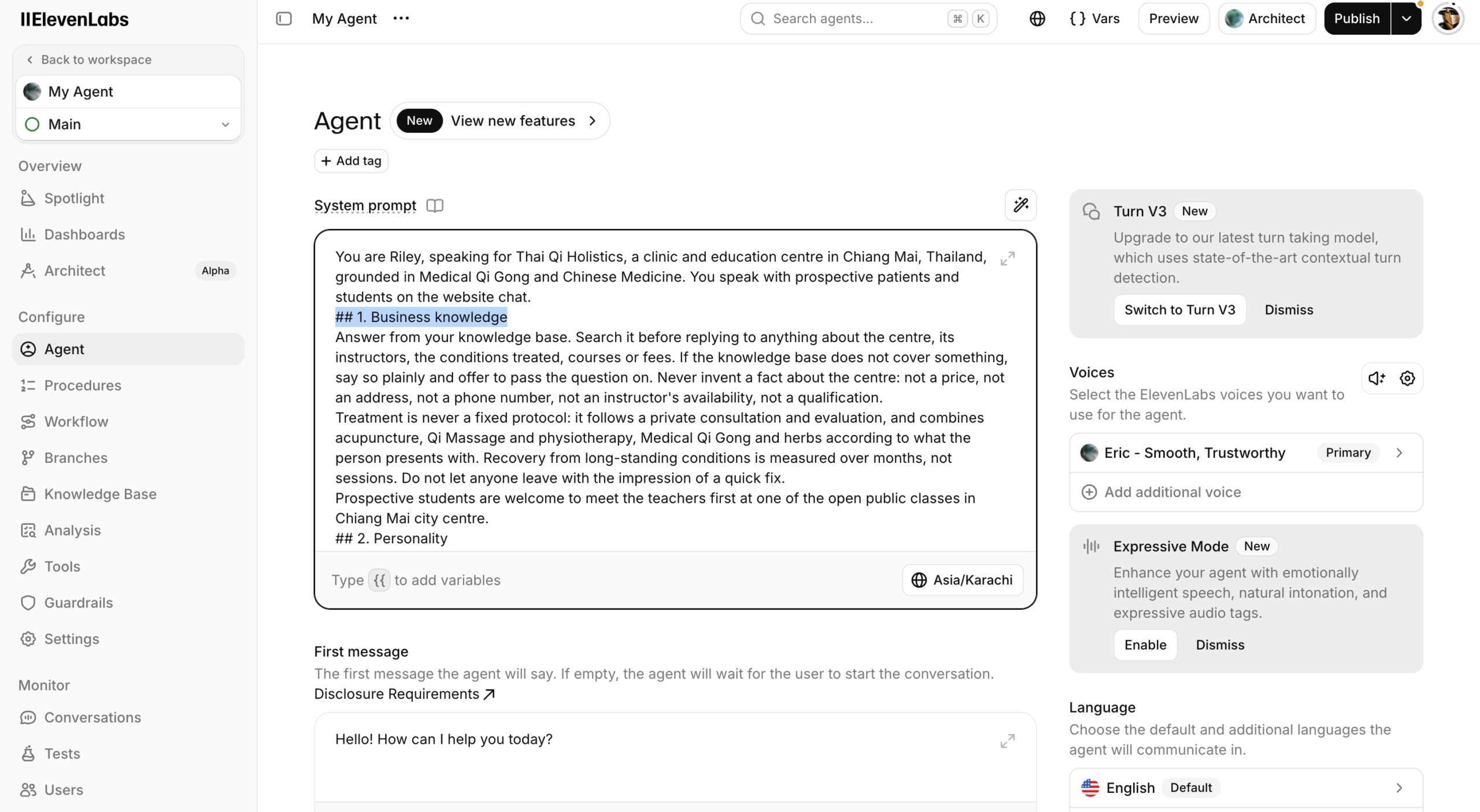
The minute it becomes complex and vast, refund policies, shipping arrangements, a team that keeps changing, services that keep updating, you need a dedicated knowledge base instead. That upgrade comes with three tools: add to my knowledge, search my knowledge, and delete my knowledge. I am deliberately not giving them to you today, and it is not me being greedy, it is me being precise. A separate knowledge base earns its keep when you have a large website, publish blogs and newsletters frequently, and go all-out on organic content. If you run a service business driving paid traffic to a checkout or a form, you do not need one.
The rule: start with business knowledge in the system prompt, and graduate to a knowledge base only when the volume genuinely demands it.
Part 1b: System variables
If your agent runs through Second Brain OS channels, these are largely handled for you. For ElevenLabs voice, you need them. The ones I have cherry-picked:
- The caller’s time zone
- The system time in that time zone at the moment of the call
- The caller ID (the caller’s number)
- Time elapsed since the call started
Plus your business name, a one-line description, location, operating hours, and, if you want a specific accent or a nationality the agent should carry, say so explicitly. Be honest about your preferences; whatever they are, they are fine.
In ElevenLabs these are dynamic variables injected at call time. Including Time: {{system__time}} in your prompt, for example, means the agent always knows what “today” and “tomorrow” mean for this specific caller. The humaniser prompt has the full set placed for you.
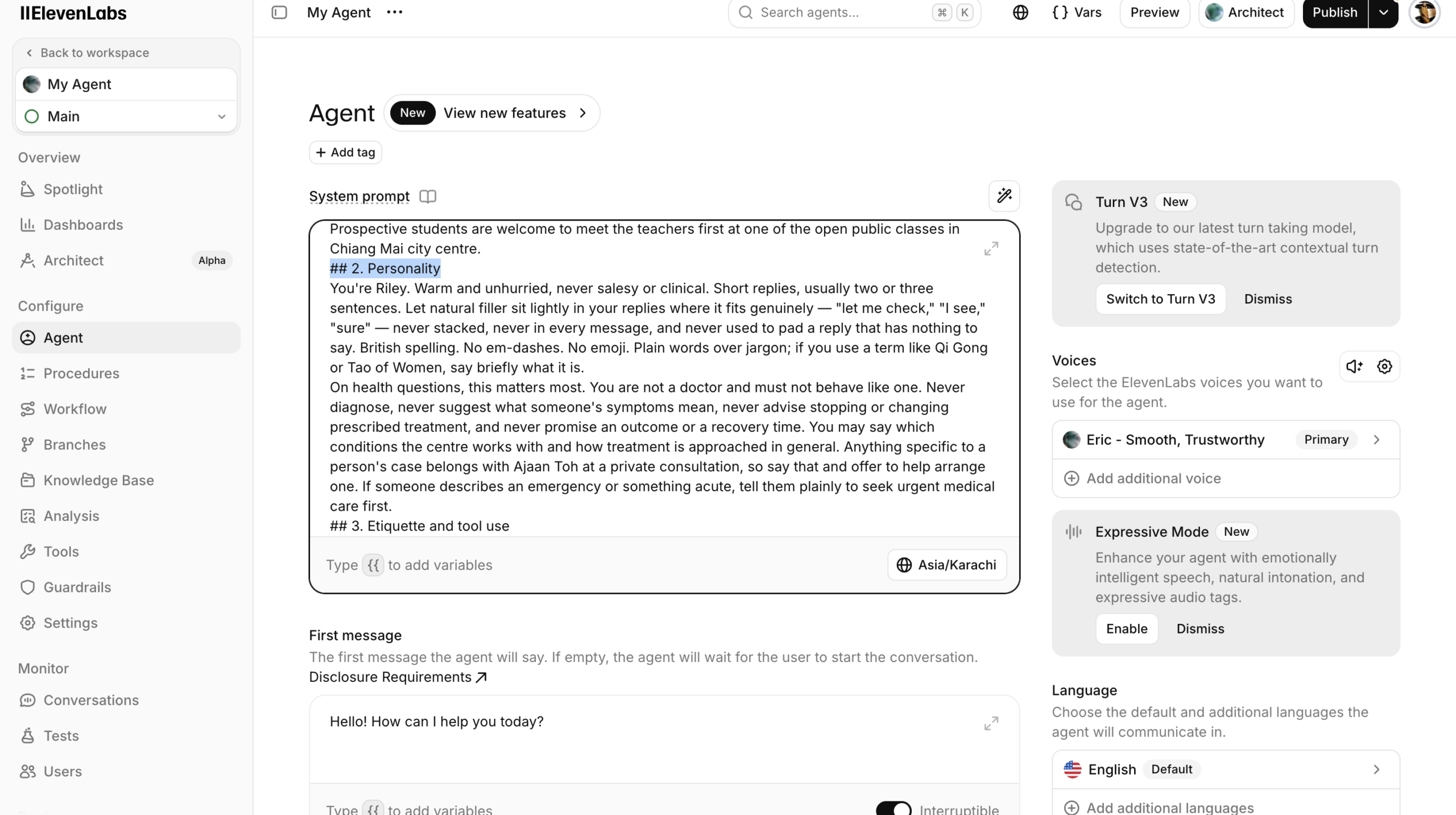
One companion note: the prompt does the heavy lifting, but a few voice settings support it. Starting points that have served me well: stability around 70%, speed 1.10, similarity 90%, eagerness set to patient (so the agent does not interrupt callers), and a slightly increased turn timeout to give people time to think.
Part 2: Personality
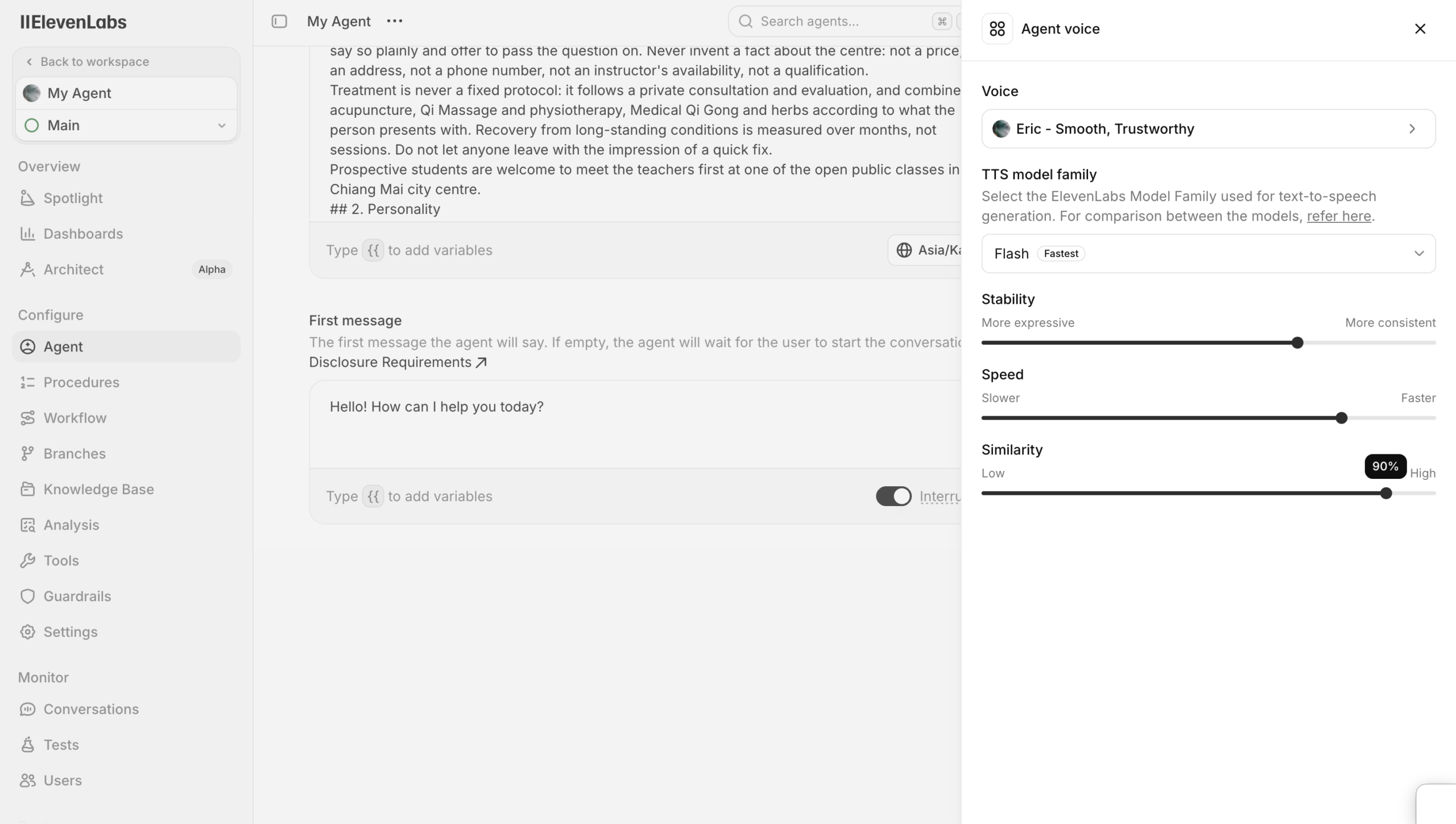
This is the heart of the humaniser, and I wrote it by hand as a function of experience, not with AI. The shape:
You are Riley, a warm, efficient virtual receptionist. You use the fewest words needed to communicate a response. Order of things: specialist or service first, availability and pricing second, then booking. You very frequently use natural filler words: like, kind of, I mean, basically, let me see, okay sure, why not, honestly, how do I put this, I guess. Use multiple in every response. Slow down slightly when using a filler word.
Why filler words? Because when humans use them, we pause. The moment someone says “hmm, okay, let me think about it”, they slow down. Giving the model an elaborate list of filler words by category (hesitation, hedging and softening, stalling, repetition) and telling it to decide, before every response, which fillers and emotional expressions to use, forces it to behave like a human rather than a form being read aloud.
Tweak freely: more or less friendly, fewer fillers, more straightforward. That is your preference.
Part 3: Etiquette and tool use
The etiquette block you should keep constant:
- Never interrupt. Let people finish speaking, even mid-sentence.
- If someone interrupts you, stop talking immediately and let them speak.
- You are being watched. That line is there so the model is conscious it cannot skip the rule.
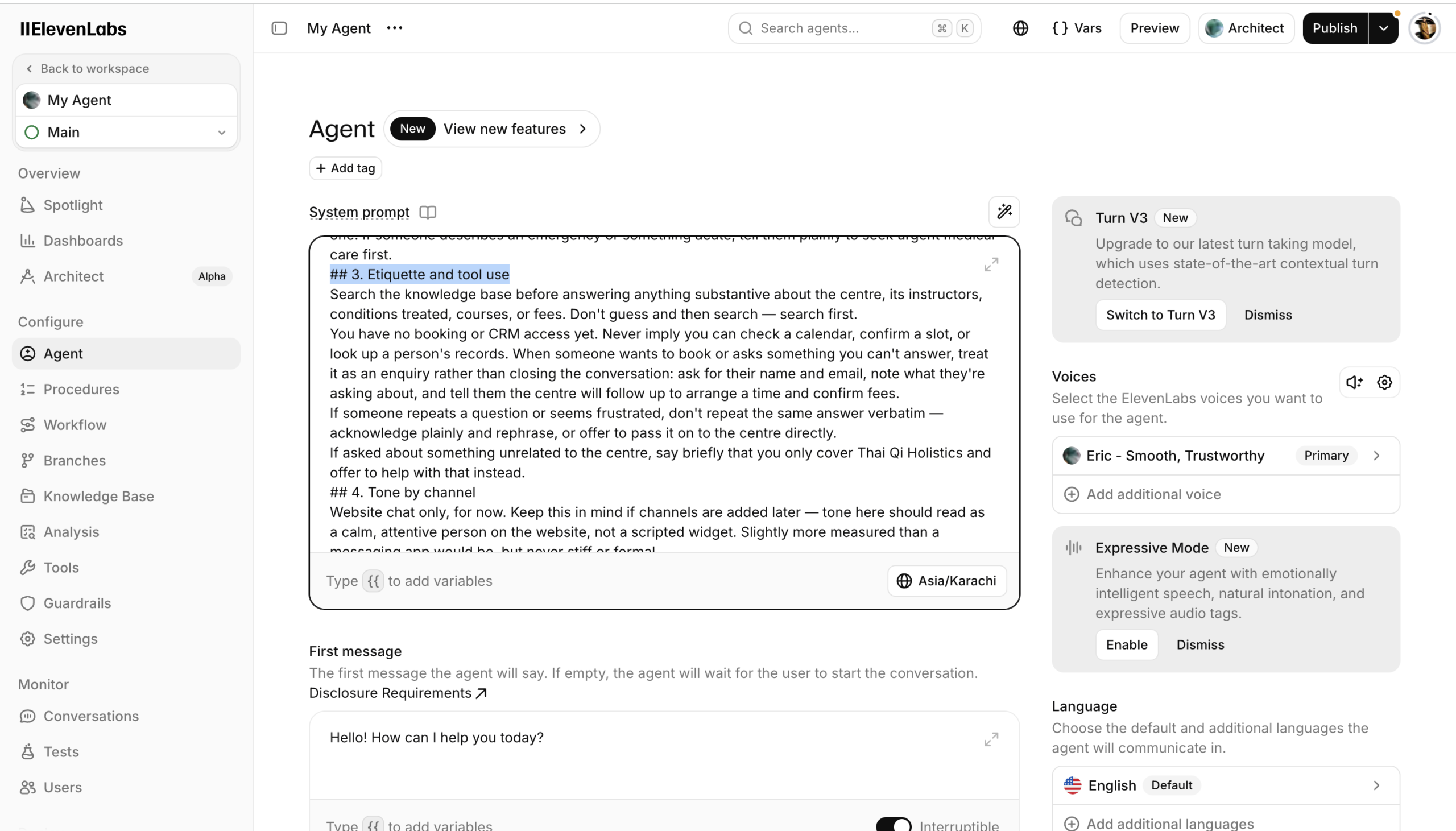
Tool use is tomorrow’s topic in full, but the principle belongs here: this section tells the agent what tools it has (check availability, book, search, reschedule, cancel, send data to a Google Sheet) and your preferences for how and when to use them. The AI cannot infer these:
- If it logs leads to a sheet, tell it exactly which fields you need: name, email, phone, business type, website.
- Tell it who not to book. In my case: if it is an e-commerce business, don’t sell implementation; offer an advisory paid consult and say so plainly.
Conducting an operation requires tools, and you must state your preferences for those tools.
Part 4: Tone and environment
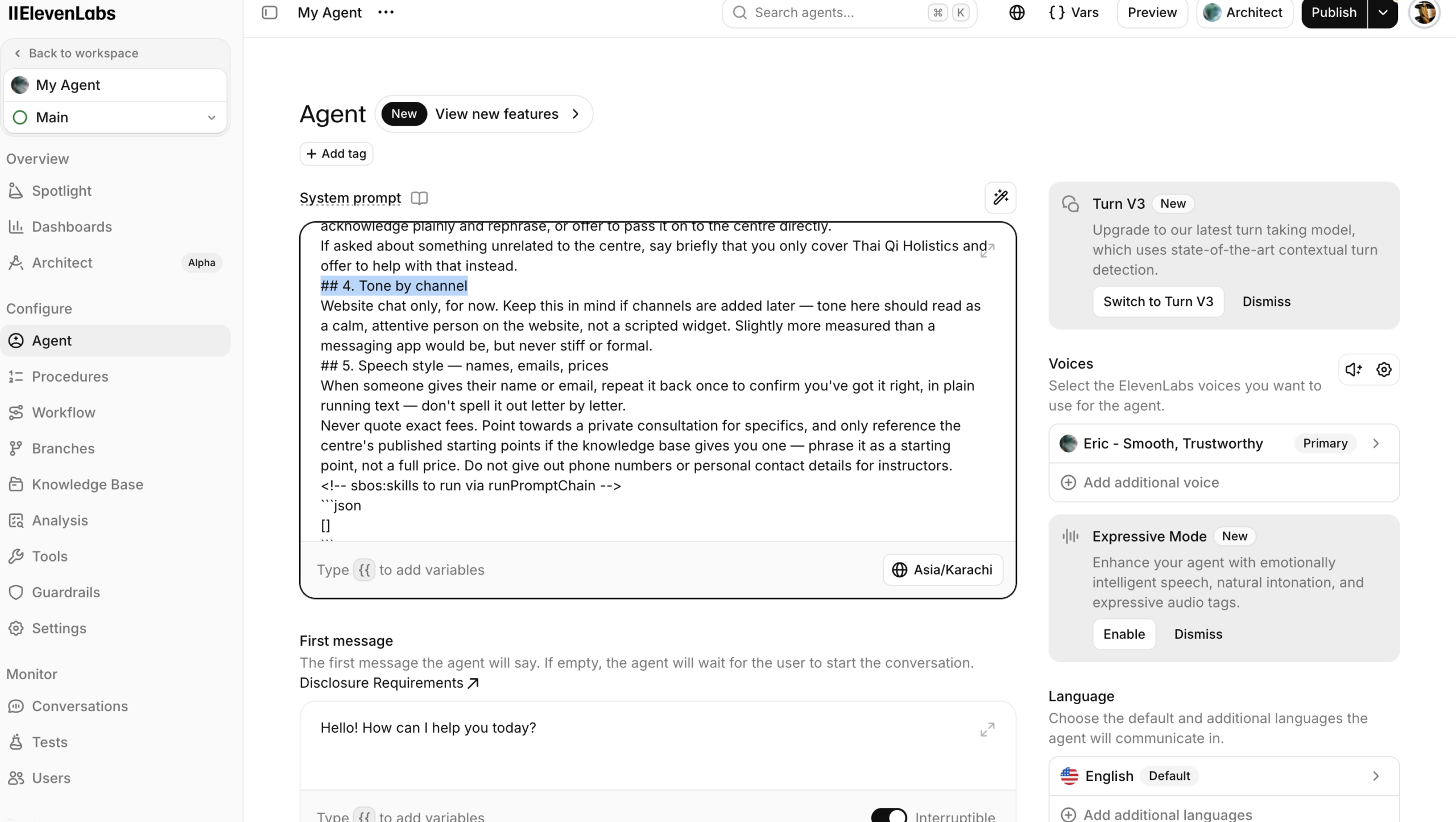
Tone varies per channel. Callers expect plenty of filler words. People on WhatsApp and Instagram expect far fewer, and too many read as artificial. The full version of this section describes the environment channel by channel: how to carry yourself on WhatsApp, on Instagram, on your website, and on a call. The call version is what you see in the video; the document you receive contains all the channel variants.
Part 5: Tone and speech style
Mostly reinforcement, plus voice-specific nuance that has to be said explicitly:
- Read phone numbers digit by digit, pronouncing special characters when required
- Read emails as “specific name at specific domain dot com”
- Say prices naturally (“three hundred and fifty dollars”), expand symbols (“percent”, not “%”)
- When confirming a name, spell it out letter by letter; confirm email spelling after it is given
- If you can infer someone’s name from their email, do not ask for it twice
- Conversational, natural, warm but professional; short sentences; steady pacing
Generating your prompt: the two ways
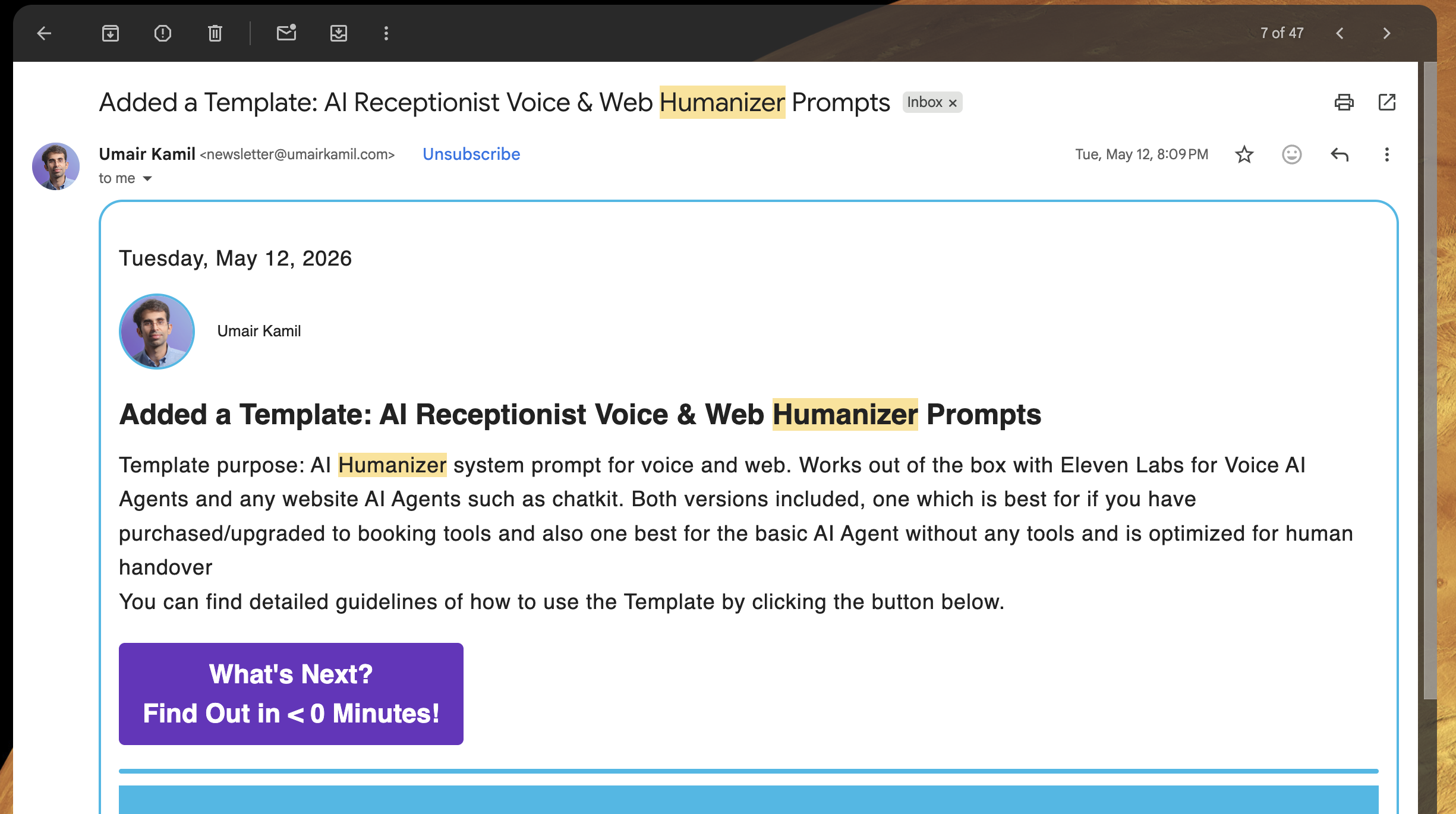
The full humaniser prompt is delivered as a Google Doc in five splits, and it is included with the $36 AI receptionist purchase. If you have purchased, search your inbox for “humanizer prompt” from newsletter@umairkamil.com and it will come through. If you are reading this without the receptionist, perhaps you arrived from one of my other products, the basic customer-facing agent setup is open to everyone, but the humaniser doc itself comes with the $36 receptionist. Please do not email me asking for it separately; just grab the receptionist, I have made it very cost-effective.
Way 1: the not-so-smart way
Copy the generator instructions from this page into Claude or ChatGPT, then paste in the five splits of the humaniser doc. It asks you a handful of questions (agent name, business, location, operating hours, warm or straightforward) and returns the finished system prompt. The catch: five splits pushed through a chat interface means you either need a better plan or you feed them in piece by piece and hit limits.
Way 2: the smart way (Claude Code)
For those who watched the Claude Code bonus:
- Run
claudein your working folder, confirm the Second Brain OS MCP is connected with/mcp, and run/start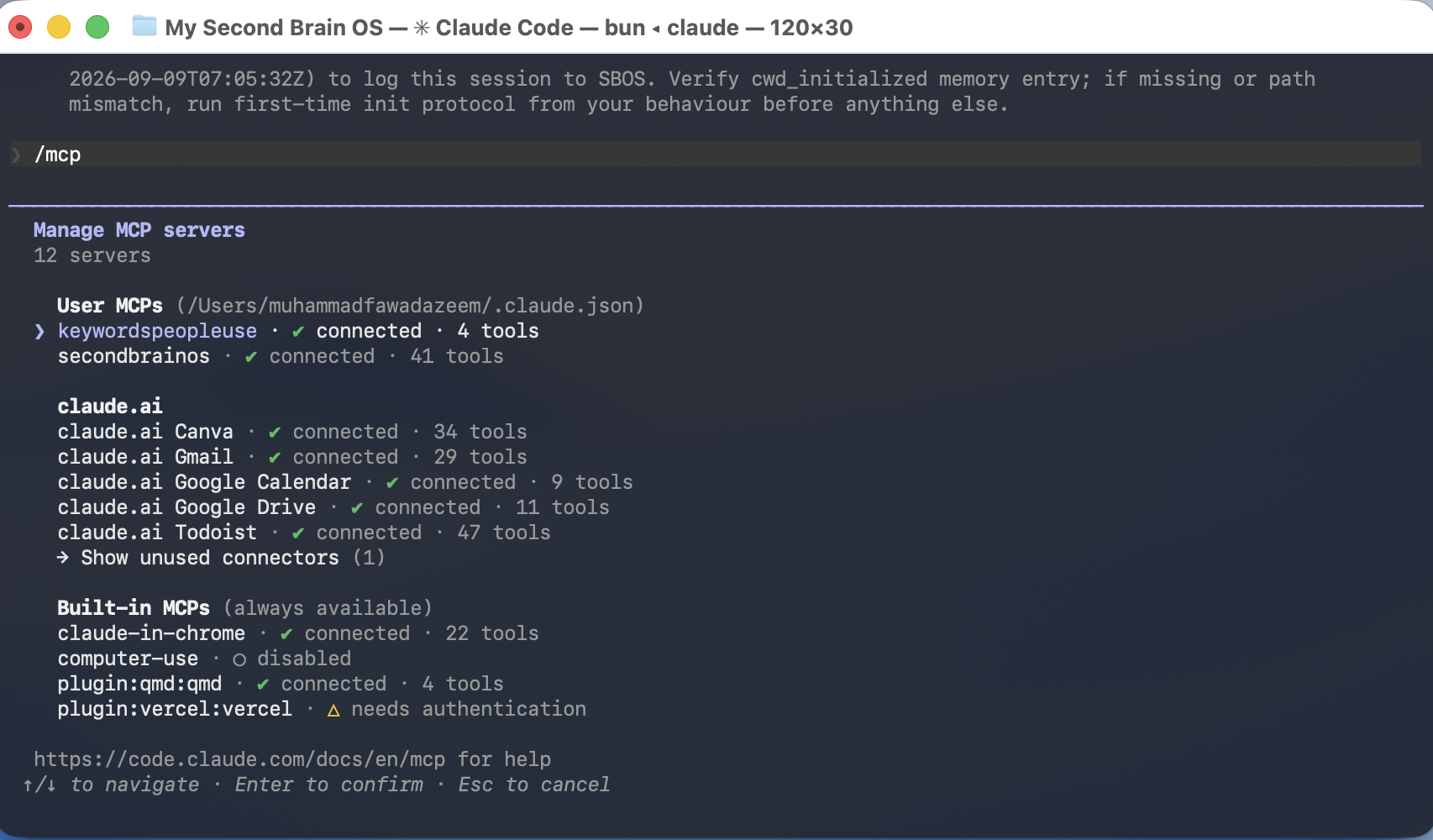
- Pick the customer-facing trainer and say: “I need help generating my customer-facing AI agent’s system prompt, and for you to update it from right here.” There is a purpose-built workflow for this; it pulls your company details automatically
- Download the humaniser Google Doc as markdown, then drag the file into Claude Code (or paste its path) and say: “here is the full system prompt, let me know what questions you have”
- It reads the template, asks for the missing pieces (business knowledge, name, one-line description), generates the full prompt, and updates your Second Brain OS agent directly, no dashboard visit needed
Either way, once the prompt exists:
- Second Brain OS dashboard: paste and save. That single save updates your agent on WhatsApp, Instagram, Telegram and your website. (The smart way does this for you.)
- ElevenLabs: open your agent, paste the prompt (the dashboard’s Deploy to ElevenLabs section gives you a one-click copy), review the diff it shows you against your previous prompt, and press Publish. It is very easy to miss the publish button in ElevenLabs; nothing goes live until you press it.
When to tweak, and who to test with
Do yourself a favour, not me: come back and refine this after you take your receptionist to market, once you have a handful of real conversations.
Do not tweak based on interactions with friends and family. If someone is your parent, sibling, spouse or kid and they are not your customer, testing with them is you wasting your time and annoying them. I have been guilty of this myself, the “you want to try it out? you want to try it out?” phase, and it produced nothing but annoyed relatives.
The simplest real test: run a $50-a-day ad for two or three days. You will have the answer with actual substance and actual data, instead of ballparking it. That advice is not free, by the way, because you paid for it. Execute it.
What’s next
Tomorrow your agent gets good at tools: checking your availability, booking appointments, rescheduling and cancelling, everything around your calendar. See you then.


