First of all, welcome back, and congratulations. You did something yesterday that most people only dream about. Plenty of business owners talk about automating their business, but they are so bogged down in the day-to-day that they never actually work on it. Taking a few focused sessions like this one is what buys you the freedom to run your business with a growth mindset.
Today is simpler than yesterday, and it does two things:
- Your agent learns to check your real availability.
- Your agent learns to book appointments directly into your calendar.
In other words, it becomes a more independent employee that relies less on you.
The plan, in order:
- Set up Calendly. Calendly is a booking layer that sits on top of Google Calendar and Microsoft Calendar, and it works with both. Whatever Calendly writes to your calendar syncs back to your Second Brain OS CRM.
- Connect Calendly to your Second Brain OS account with a token.
- Update your system prompt to a with-tools version and pick a model capable of tool use, both in the Second Brain OS dashboard and in ElevenLabs.
- Attach the Calendly tools to your agent and test.
Everything you deployed yesterday keeps working. You will not touch WhatsApp, Instagram, Telegram or your website again today; updates made in the dashboard push to every channel automatically.
Step 1: Set up Calendly
Log into the Google account whose calendar you want bookings to land in, then head to calendly.com and click Sign up with Google.
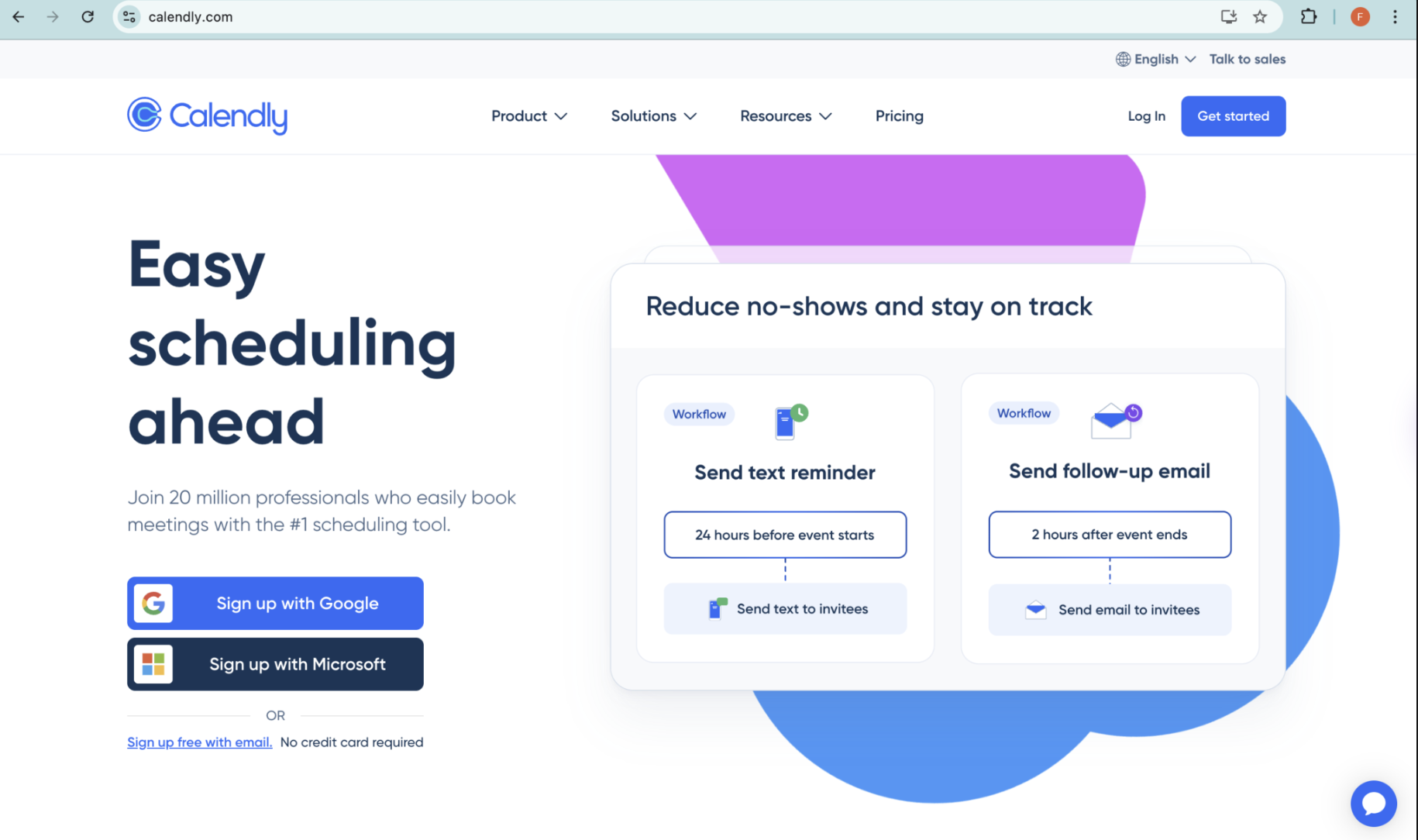
Take this part slowly. Calendly is connecting your Google account and, through it, your Google Calendar. If this connection is done properly, everything after it is smooth.
The permissions screen
During sign-up you will see “Select what Calendly can access.” This grants Calendly full calendar permissions: reading it, changing it, deleting or cancelling events. That is a lot of privilege, and while it is safe for the most part, it should be in your awareness. If you want the detail, read Calendly’s privacy policy and terms, or paste them into Claude or ChatGPT and ask how your data is used. Then press continue.
The next few questions (“how will you use Calendly”, “what do you do”) are for Calendly’s own information. Any answer is fine.
The calendar connection check
This is the step people miss. On the connection screen, confirm:
- It says Google with exactly the email you connected
- It shows checking 1 of 1 sub-calendars, with your email ticked
- Calendar to add meetings to is that same calendar
“Calendars to check for conflicts” means exactly what it says. If you block 2pm to 3pm on your own calendar for deep work, or you already have a meeting, Calendly respects it and never books over it.
Availability
Select your current time zone first. (If you genuinely travel constantly, Calendly supports multiple availability schedules per time zone, but for most people one is right.)
Then set your hours. Two common shapes:
- Appointment-driven business (dentist, law firm, salon): your working hours are your availability. Something like 9am to 5pm on working days.
- Selective-appointment business (consultants, my own case): custom blocks per day, for example 11am to 1pm and again 4pm to 6pm on Mondays, with the rest protected for delivery work. Calendly handles that complexity fine.
For this walkthrough I set 9am to 5pm daily and pressed next.
In-person or virtual
If you meet virtually, pick Zoom, Google Meet or Microsoft Teams. If you take physical appointments, pick in person and enter your business address. That matters: whoever books receives your address in writing along with the time, which protects both sides.
The event type
Open the default event type and shape it into your real offering:
- Rename it. Mine became AI Strategy Consult for Sales & Conversions
- Set the duration (I used 60 minutes)
- Confirm the location (Google Meet in my case)
- Availability: use the default schedule you just configured
- Save changes
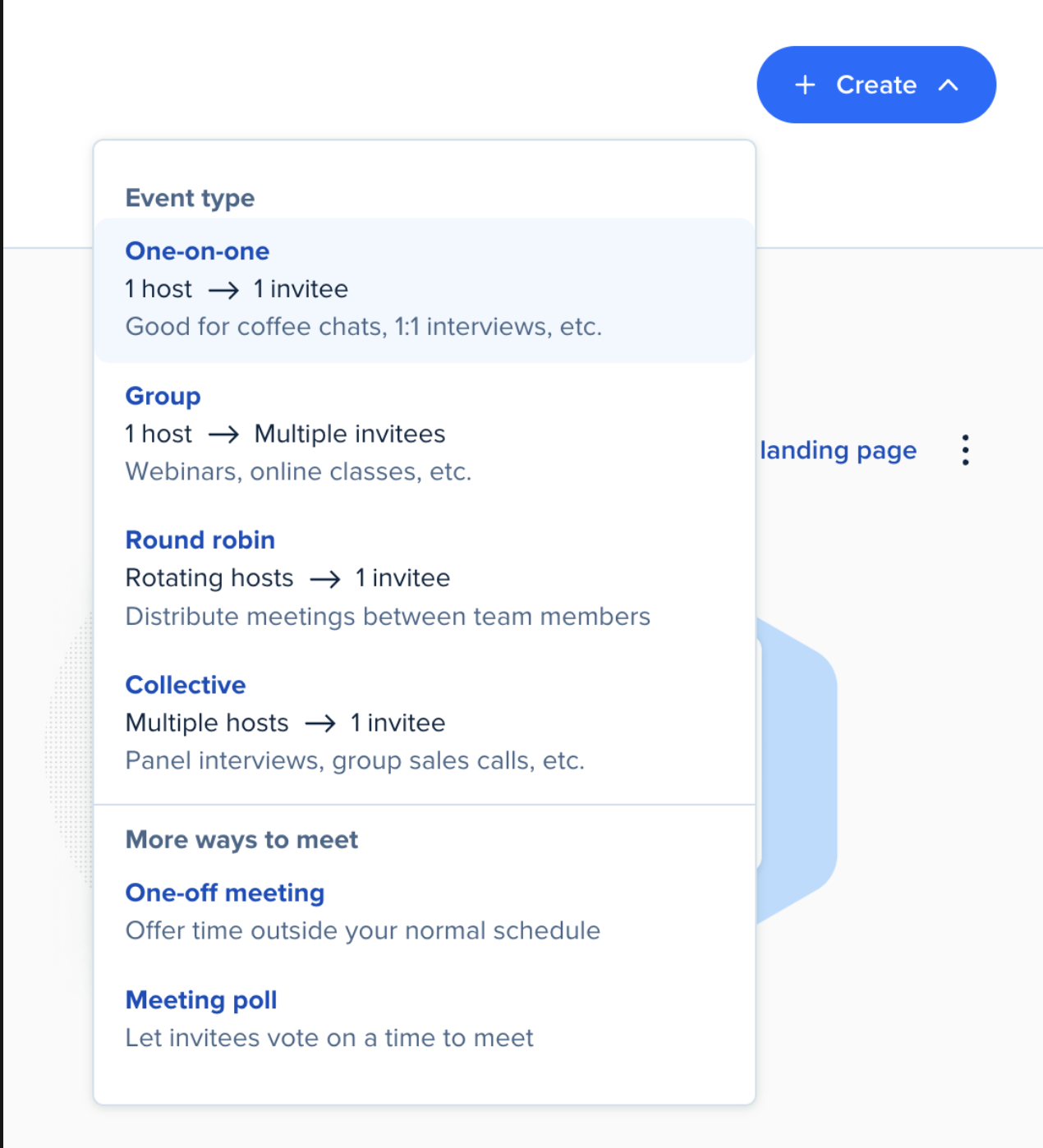
Worth understanding while you are here: event types are the different services or meetings you offer. A 1:1 consultation is one event type; a haircut and a facial would be two. Each event type has slots, people book into your slots, and you control the slot length. Shorter slots mean more people can book; longer slots mean fewer. Your agent respects this, so nobody double-books into the same slot. The one exception is a one-to-many event, like a workshop, where multiple people deliberately book the same slot, and you can cap attendance (“no more than 10”) for limited-seats scenarios. For today, one event type is all you need.
Step 2: Connect Calendly to Second Brain OS
In Calendly, go to Automations, search for webhook, and create a personal access token.
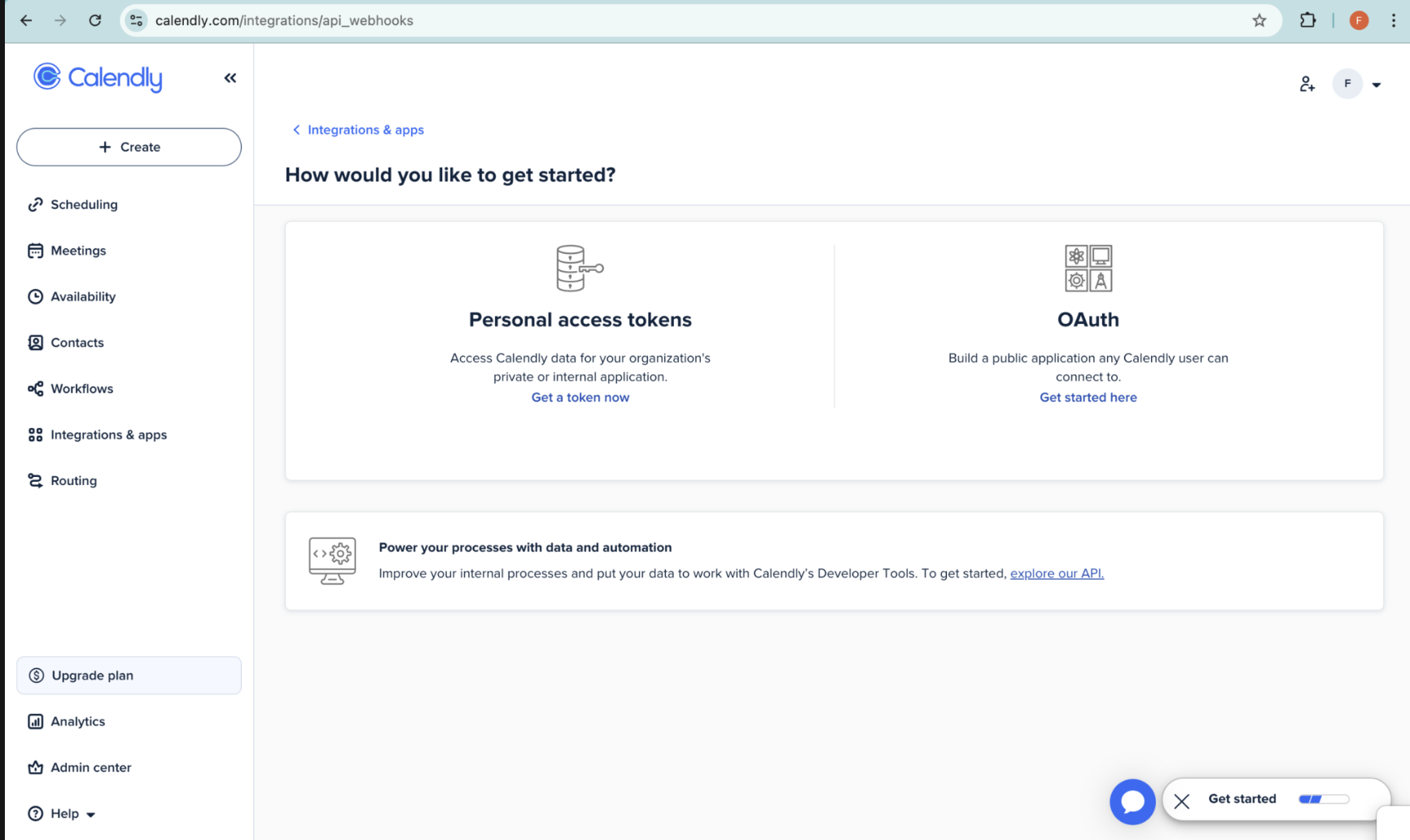
⚠ Scopes: select scheduling, user management, contacts, and webhooks. All four. The webhooks scope is easy to skip and quietly important: it is what makes every booking appear on the contact’s record in your CRM automatically, in real time. The whole promise of today, that calendar changes sync back to your CRM seamlessly, depends on it.
Name the token something like “Second Brain OS”, press next, enter the verification code Calendly emails you, and copy the token.
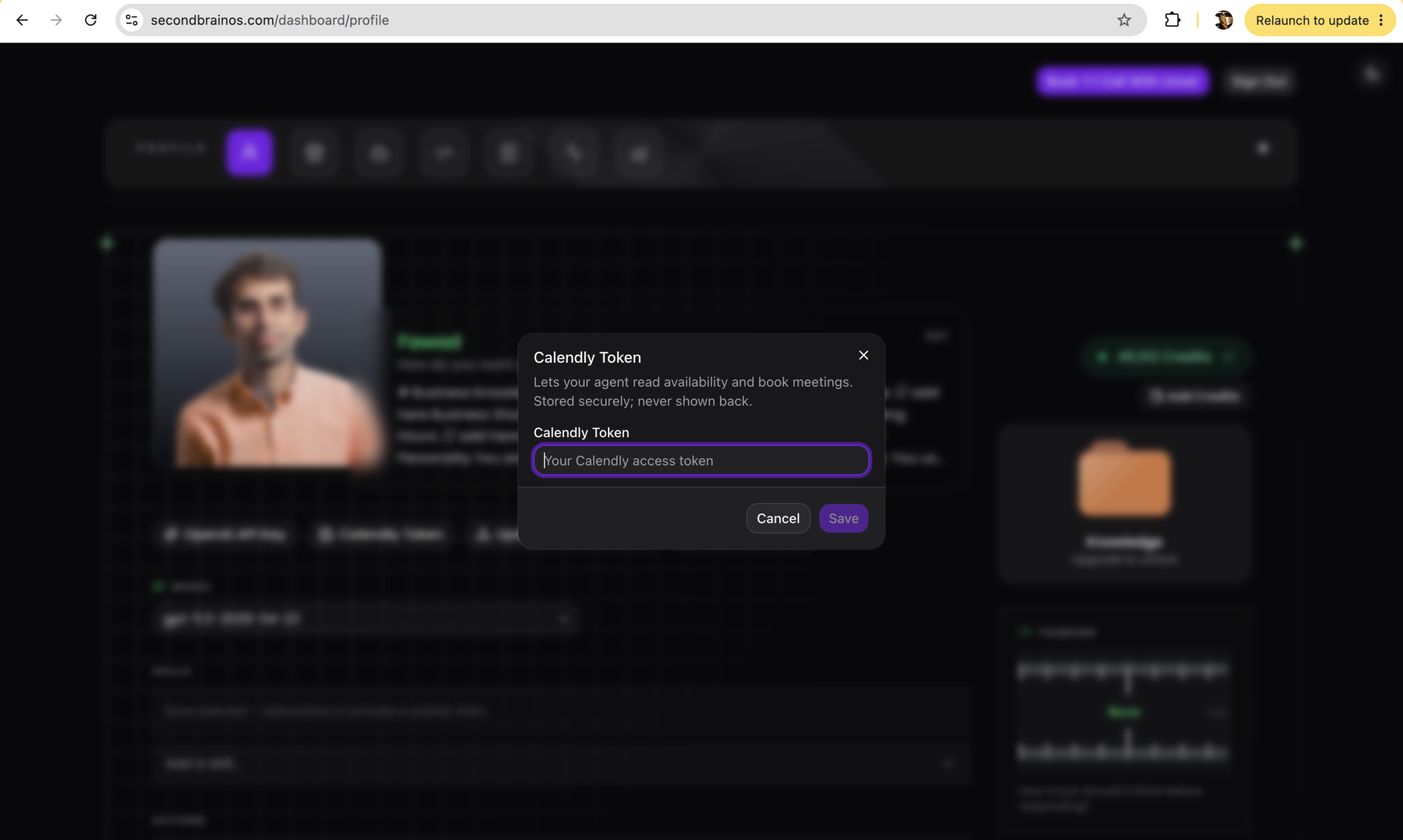
Then go to your Second Brain OS dashboard, find the Calendly token field in your profile, paste it, and save. Your account is now connected, and your agent can use whichever Calendly tools you have purchased.
Step 3: Update the system prompt for tool use
Up until now your agent had little or no tool use. Because we are introducing tools today, the system prompt must be updated so the agent knows what tools it has and when to use them.
Two ways to do it:
The manual way. Copy the generator prompt below into Claude or ChatGPT, answer its questions (availability and booking only, or also search, reschedule and cancel if you have that upgrade), and it produces a tool-use section to add to your prompt. Paste the result into your dashboard and save.
I have a working system prompt for my customer-facing AI receptionist, and I have just
given it appointment tools built on Calendly. Interview me, one question at a time, then
write a tool-use section I can append to my existing prompt. Do not rewrite my prompt.

Ask me:
1. Which tools I own: (a) check availability + book, or (b) those plus search existing
   bookings, reschedule and cancel.
2. What I need from a customer before booking (email and phone at minimum; anything
   else like a membership ID or reference).
3. How far ahead people may book (this becomes the "next available" window).
4. If I own reschedule and cancel: whether customers can hold more than one upcoming
   appointment at a time (if yes, the agent must search and list their bookings and
   confirm which one to change; if no, it acts on the soonest upcoming appointment
   under their email).
5. Whether there is anything the agent must never do without confirming with the
   customer first, and who it should never book (my exclusions).
6. If a tool fails mid-conversation: whether there is a real phone number or email to
   give out. If not, the section must forbid inventing one.

Then write the tool-use section as numbered flows (one flow per outcome), naming the
tool at each step and its inputs. Bake in these rules regardless of my answers:
- Collect the email first and confirm its spelling; infer the name from the email
  rather than asking twice; take the phone in international E.164 format.
- Book in the customer's own time zone, and never report a slot in a time zone
  different from the one being booked. State datetime formats explicitly.
- Never expose internal booking IDs to the customer; confirm changes using date,
  time and service only.
- Never mention tool names or where data lands. The customer sees a receptionist
  taking details, nothing more.
- Read back date, time and service before any reschedule or cancellation.

Finish by telling me where the section slots into my existing prompt (after the
behaviour, before any closing instructions), and state anything you assumed.
The smarter way, if you watched the Claude Code bonus: open your terminal, run claude, confirm the Second Brain OS MCP is connected with /mcp, run /start, pick the customer-facing trainer, and say:
I need help updating the system prompt with tool use. Ask me what you need and let’s get it done.
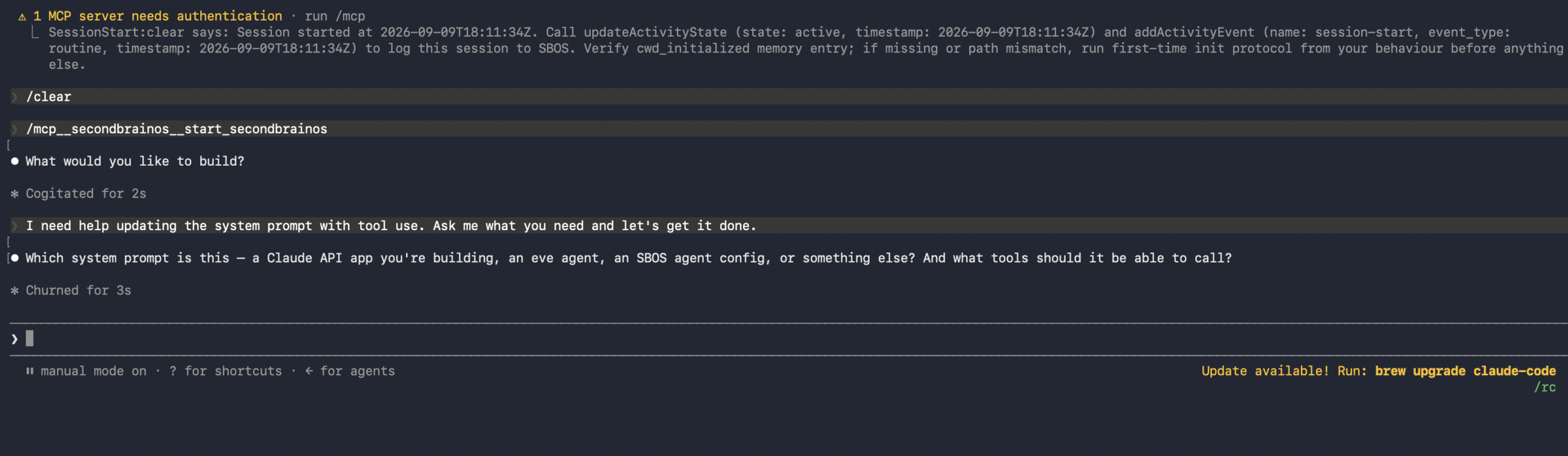
Claude gathers your preferences, writes the tool-use section, and makes the dashboard update for you. One save, and the agent on WhatsApp, Instagram, Telegram and your website is running the new prompt.
While you are at it, pick a smarter model in your agent settings, one capable of tool use. That applies in the dashboard and, later, in ElevenLabs.
Step 4: Understand and attach your Calendly tools
What you have depends on what you purchased.
| Upgrade | Tools | What they do |
|---|---|---|
| Booking | getCalendlyAvailability |
Checks your real availability: your configured hours minus anything already on your calendar, including your own busy blocks |
| Booking | createCalendlyContactMeeting |
Creates the contact in Calendly and books the appointment |
| Reschedule & cancel | searchCalendlyMeetings |
Finds which meetings a given lead already has booked |
| Reschedule & cancel | updateCalendlyMeeting |
Reschedules an existing appointment |
| Reschedule & cancel | cancelCalendlyMeeting |
Cancels an existing appointment |
A few practicalities the tools handle for you, worth knowing so nothing surprises you:
- Phone numbers must be in international E.164 format (like
+14155551234); Calendly rejects anything else. Your with-tools prompt already instructs the agent to confirm the caller’s country and format the number before booking. - Availability lookups can span up to 30 days in one call, grouped by date, so “when are they next available?” works naturally.
- Calendly has no direct reschedule API. Under the hood, a reschedule cancels the old event and creates a new one, which is why you receive both a cancellation and a fresh invitation email. Second Brain OS handles that seamlessly; the same operation takes twenty-plus steps in n8n or Zapier.
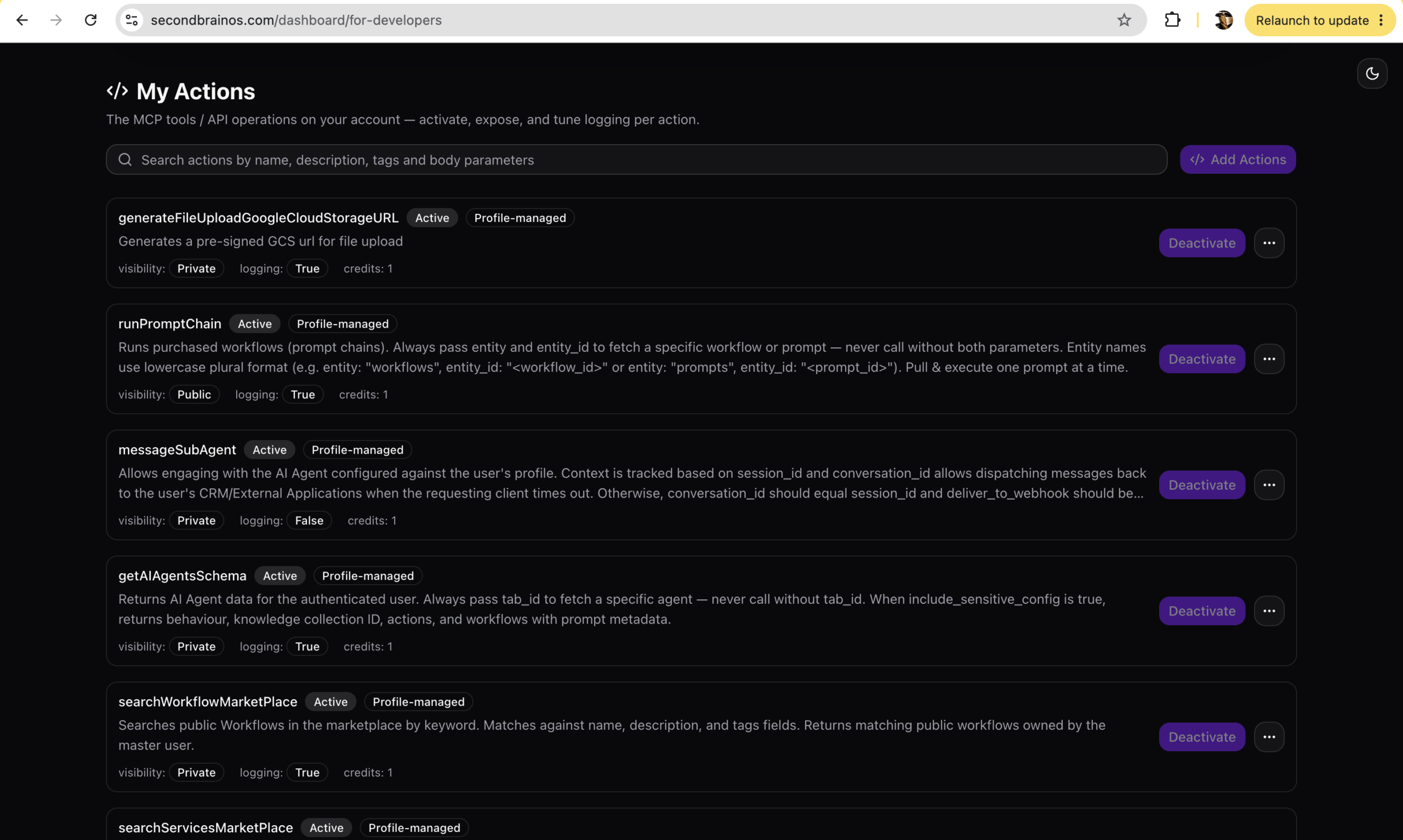
To attach the tools: in your profile, go to Actions, tick the Calendly tools you own, and press save.
Which tools should actually be active? A short decision guide
Not every tool you own needs to be live on your deployed agent. It depends on your scenario:
- Scenario A: one service, one calendar. A solo operator with a single bookable event type. Keep availability, booking, reschedule and cancel active, but leave search off. With one service, reschedule and cancel simply act on the customer’s soonest upcoming appointment by email; there is nothing to search among.
- Scenario B: multiple services, one calendar. You offer several services at different prices and durations, all landing in your calendar. Ask yourself one question: do my customers regularly hold more than one upcoming appointment with me at the same time? A salon client might have a haircut Tuesday and a colouring Friday, so search earns its place. A consultant’s clients usually have one session booked at a time, so it does not.
- Scenario C: multiple specialists, each with their own calendar. That is the Teams tier, a separate setup covered later in the series.
And if you would rather the AI only books, with reschedules and cancellations handled by you or your staff (some businesses want a human enforcing cancellation policies or fees), simply leave the reschedule, cancel and search tools unattached. Changes take effect immediately, no redeployment, and you can adjust at any time.
Two small rules for reschedule and cancel conversations, worth adding to your prompt preferences:
- The email is the verification: the tools only ever act on appointments booked under the email the customer gives. Have the agent read back the date, time and service before making any change.
- The agent must never read internal booking IDs aloud; it confirms changes using date, time and service only.
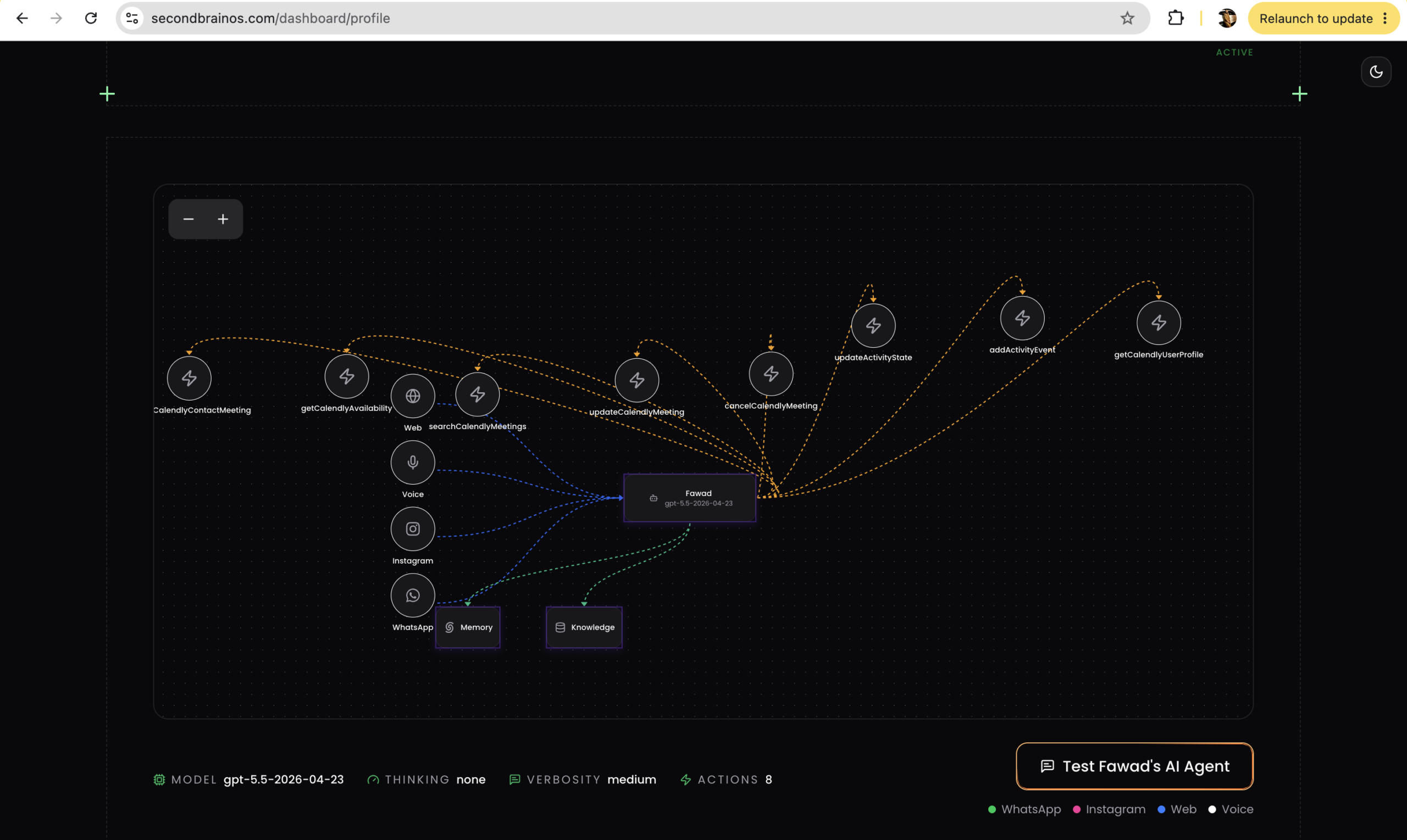
Scroll to the agent diagram below and watch it update. Orange nodes are actions you have attached; green is knowledge and memory (and skills, if you add those later). With all five tools plus the Google Sheets webhook from the earlier tutorial, one agent can now answer, check availability, book, search, reschedule, cancel and log data, over web, voice, Instagram and WhatsApp, with conversation memory throughout.
Testing it end to end
Press test in the dashboard. For transparency: my demo account is connected to a demo Calendly that lets the agent play a variety of firms, which I use for all demos.
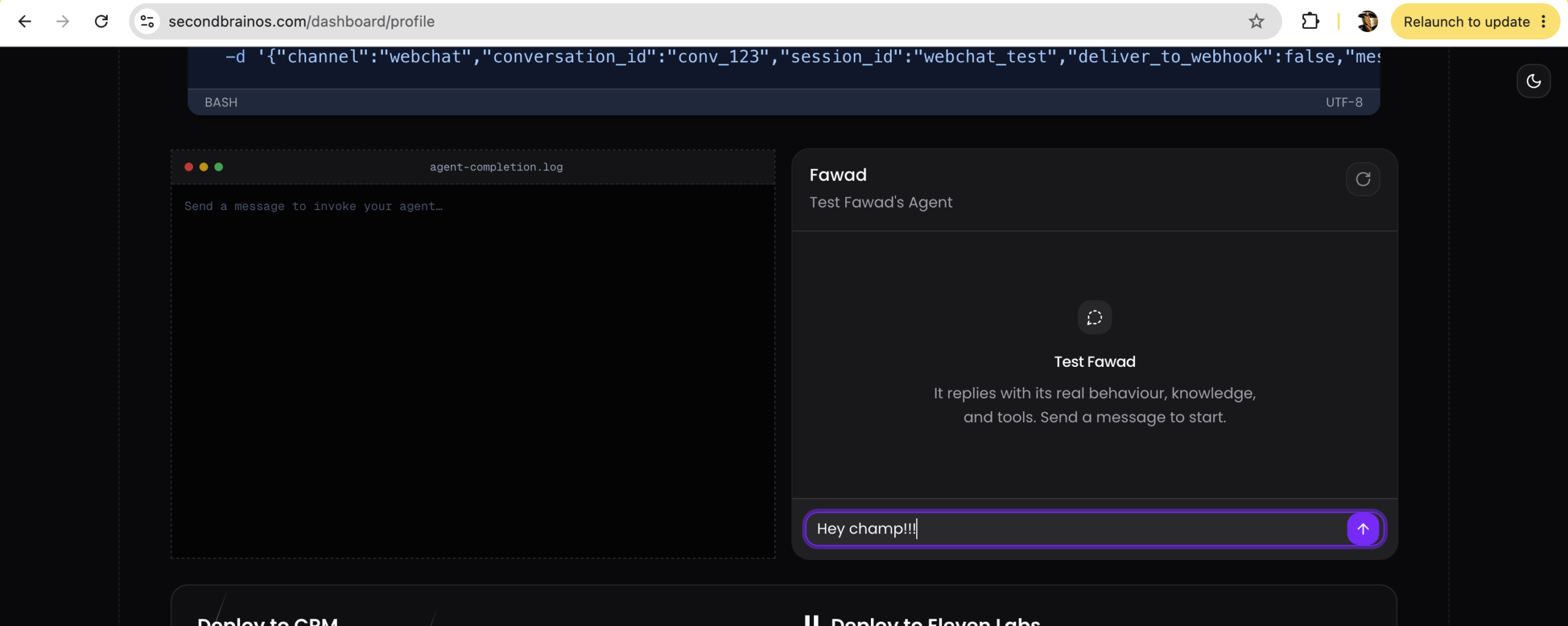
What I ran, and what you should try yourself:
- Book. I asked for help with a business acquisition contract, was offered a 45-minute consult, and picked Thursday 3:30pm Pakistan time. The agent asked for my email and phone, booked it, and the confirmation email arrived with the meeting at 3:30pm to 4:15pm.
- Book again. Second consult for Friday 1:30pm. Because the agent already had my details in memory, it booked without re-asking. Second confirmation email landed.
- Search. I wiped the conversation, started fresh, and asked whether any meetings existed under my name. It asked for my email, found both bookings, and converted the UTC times to Pakistan time on request.
- Reschedule. “Move the 3:30pm one to Monday at 4pm.” The Thursday event was cancelled and the Monday event created; both emails arrived.
- Cancel. “Cancel the 1:30pm one, I can’t make it.” Cancelled, cancellation email received.
Time zones are handled for you
The lead booked in Pakistan time; the host calendar showed the same meetings correctly in Eastern time (3:30pm PKT appearing as 6:30am ET, and so on), and the reschedule tracked across both. Neither party did any arithmetic. As long as your availability is set correctly, both sides always see their own time zone.
What the logs show
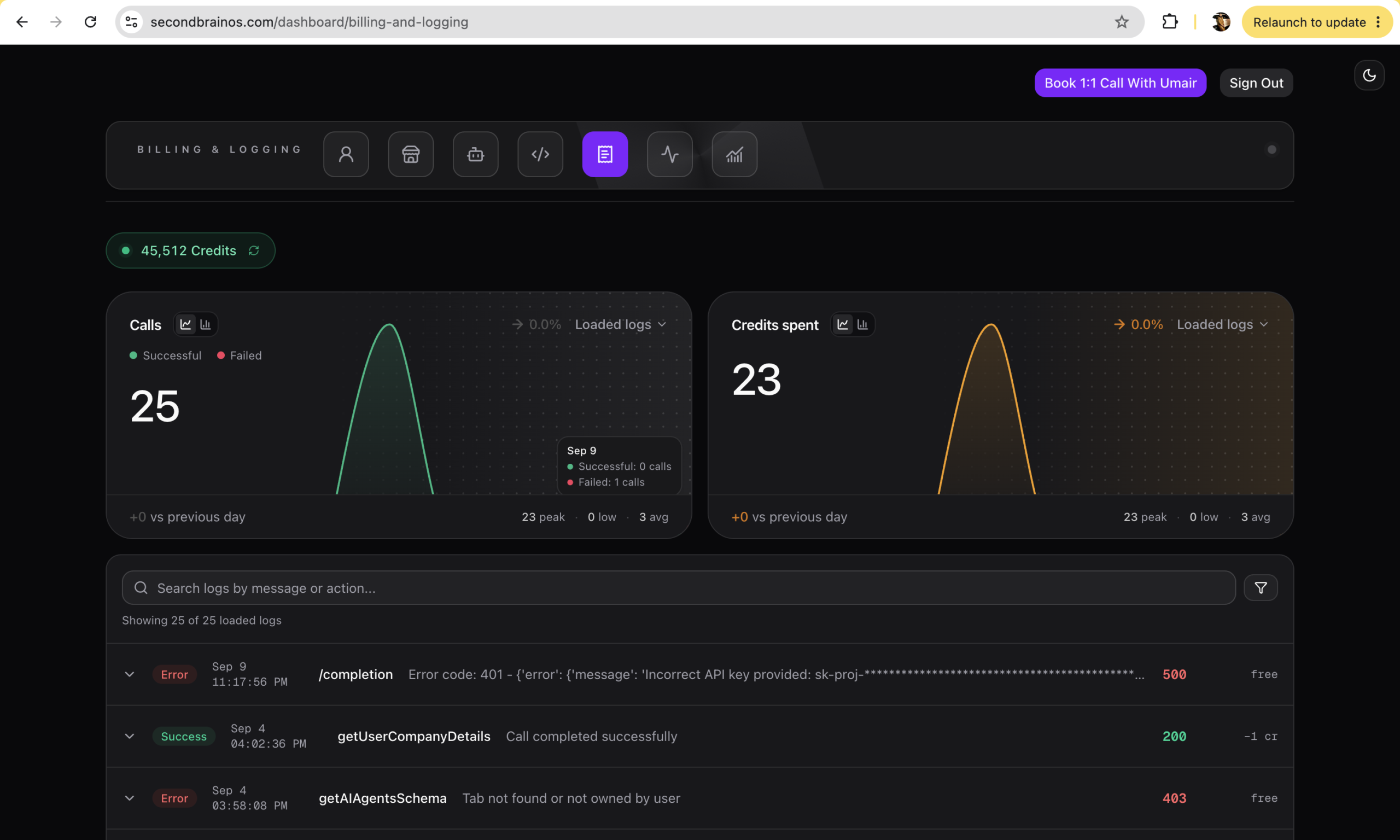
Open your logs and you can see every message and every tool call. Worth knowing: on the first booking attempt the model sent a wrong date-time format. My servers rejected it with a corrective error, the model fixed itself and booked successfully. The same thing happened once on the reschedule. That self-correction is built in, and failed calls are visible in the logs so nothing is hidden. During testing you also see the running total cost: the AI model tokens plus the Second Brain OS tool calls, in one place, so you know what each conversion actually costs.
If you want a completely fresh start for real leads, the dashboard’s delete option wipes conversation history across web, Instagram and WhatsApp. It is optional; existing conversations pick up the new tools either way.
Step 5: Give your voice agent the same tools (ElevenLabs)
Your voice agent thinks through the same Second Brain OS tools, connected over MCP. The configuration is a one-time setup in ElevenLabs.
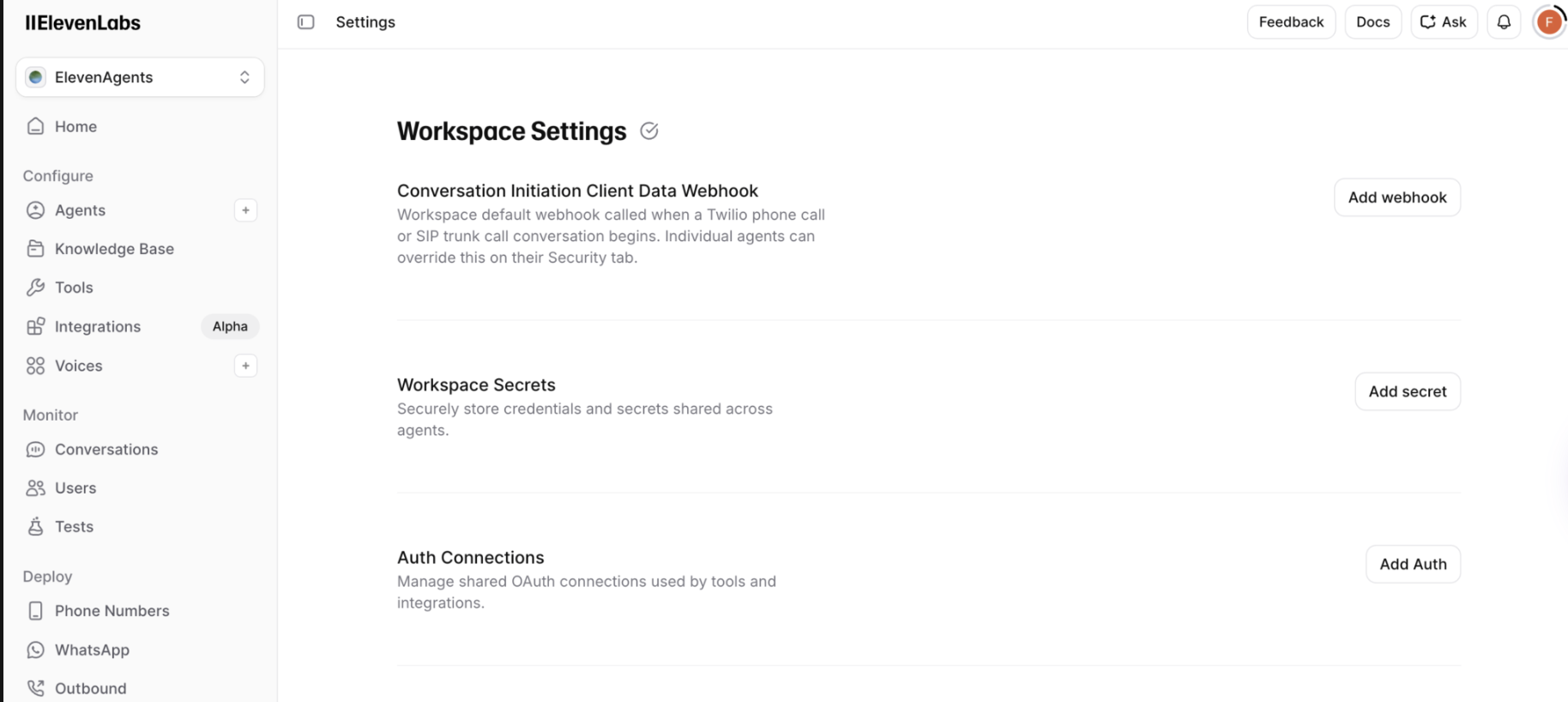
5a: Add the API key as a workspace secret
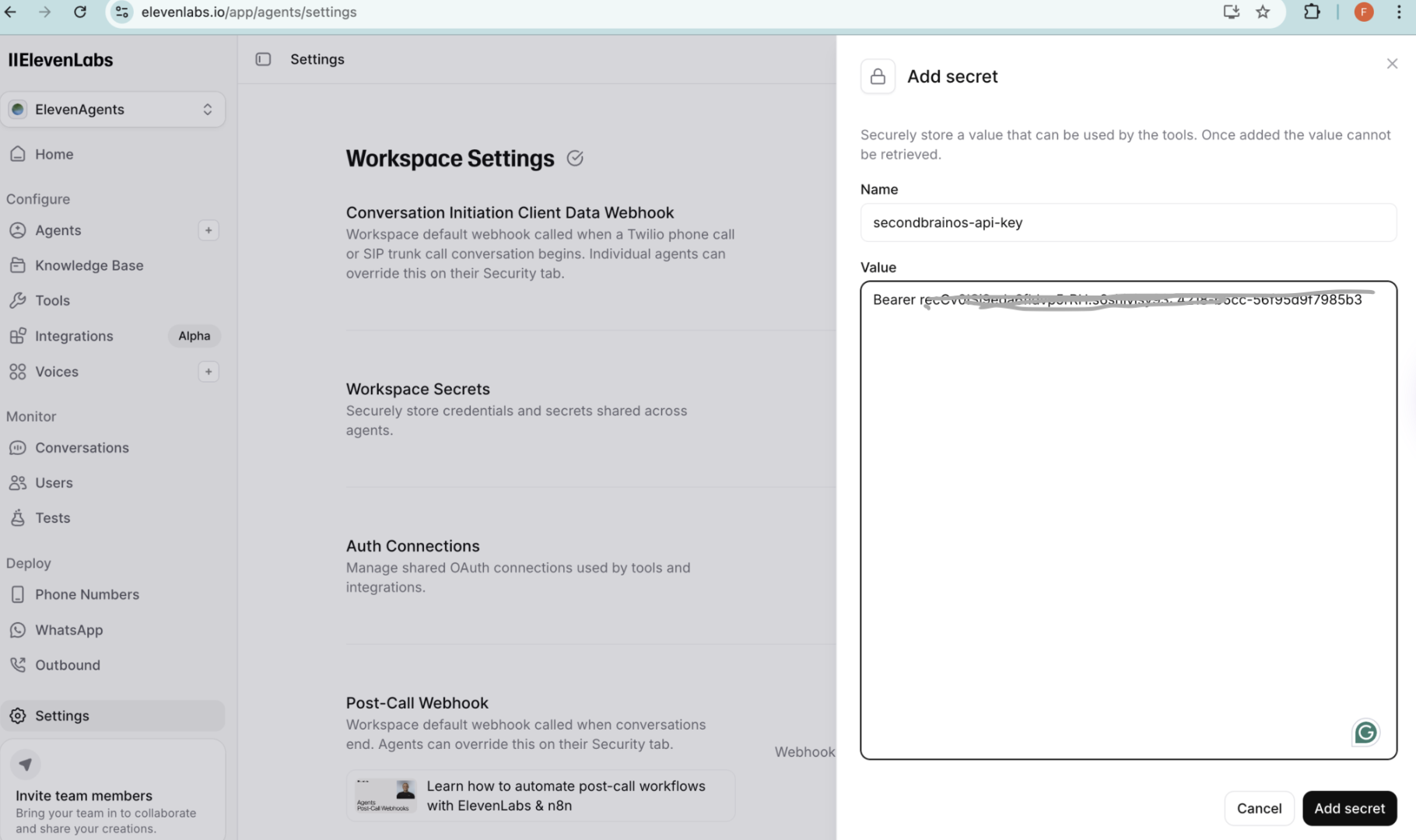
- In ElevenLabs, go to Settings → Workspace secrets → Add secret and name it “Second Brain OS”
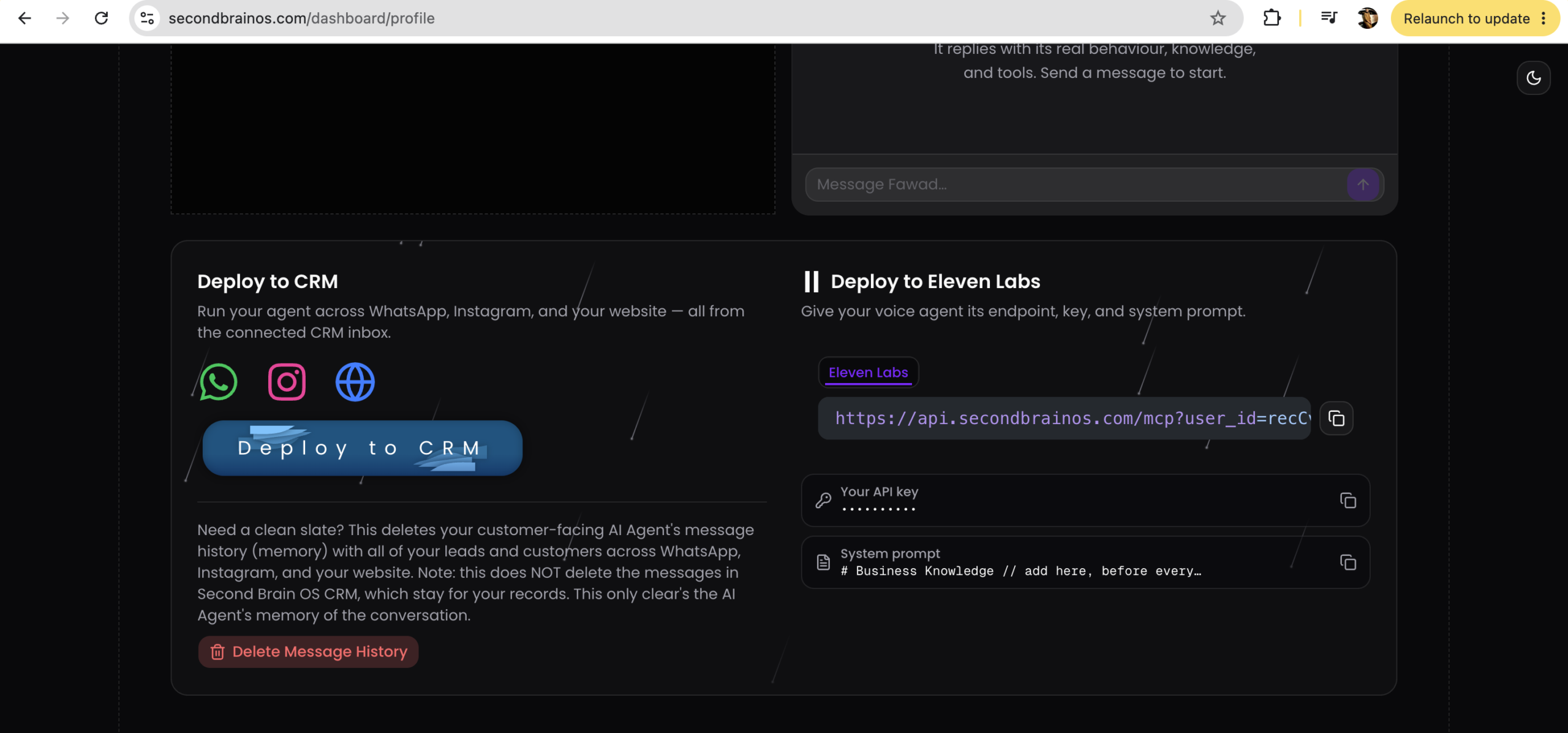
- In your Second Brain OS profile, scroll to Deploy to ElevenLabs and copy your API key
- Paste it as the secret’s value, prefixed with
Bearerbefore the key, then save
5b: Create the environment variable
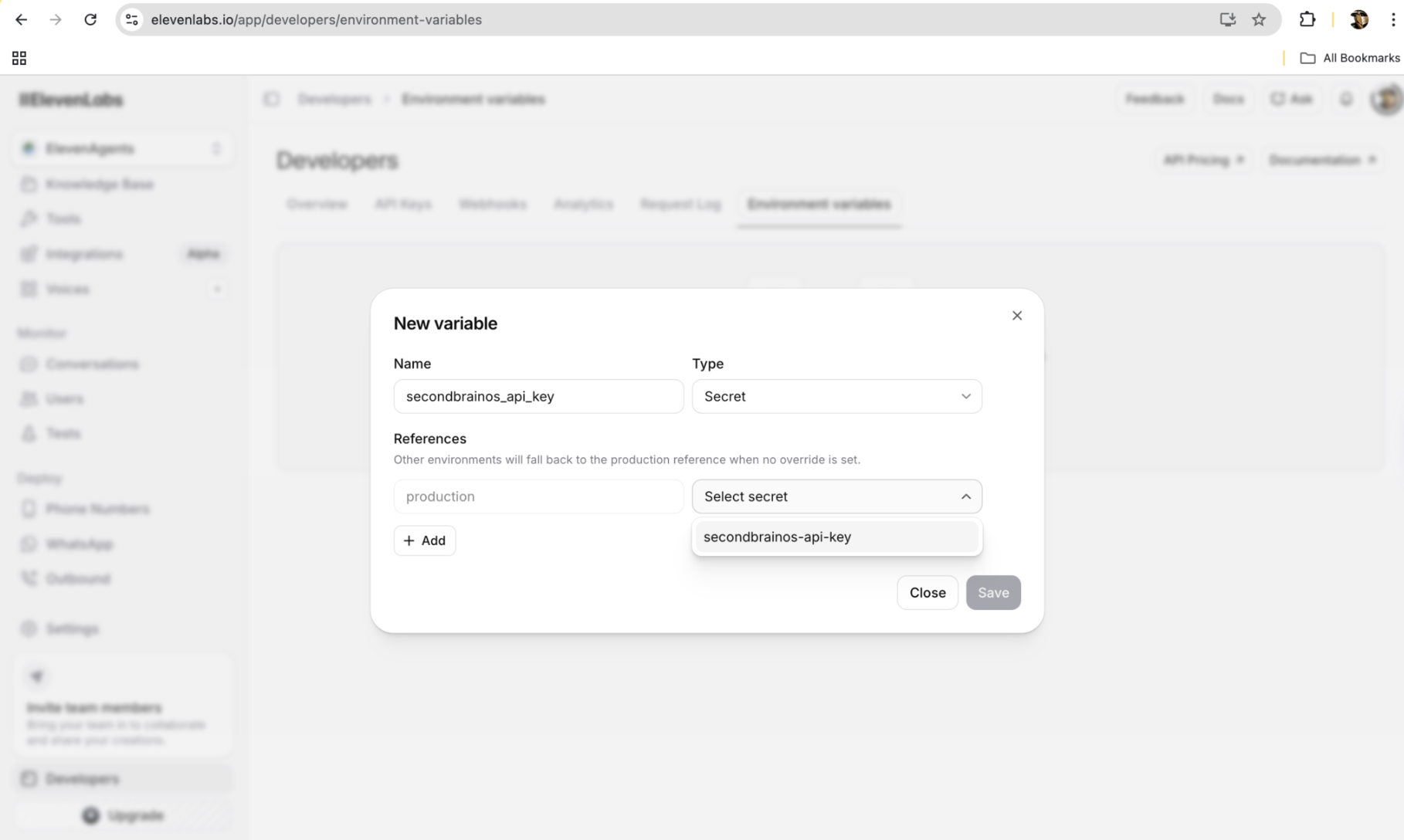
Go to Developers → Environment variables → Add a variable. Name it “Second Brain OS API key”, type secret, and reference the secret you just created.
5c: Add the MCP integration
Go to Integrations → Add integration → Custom MCP server:
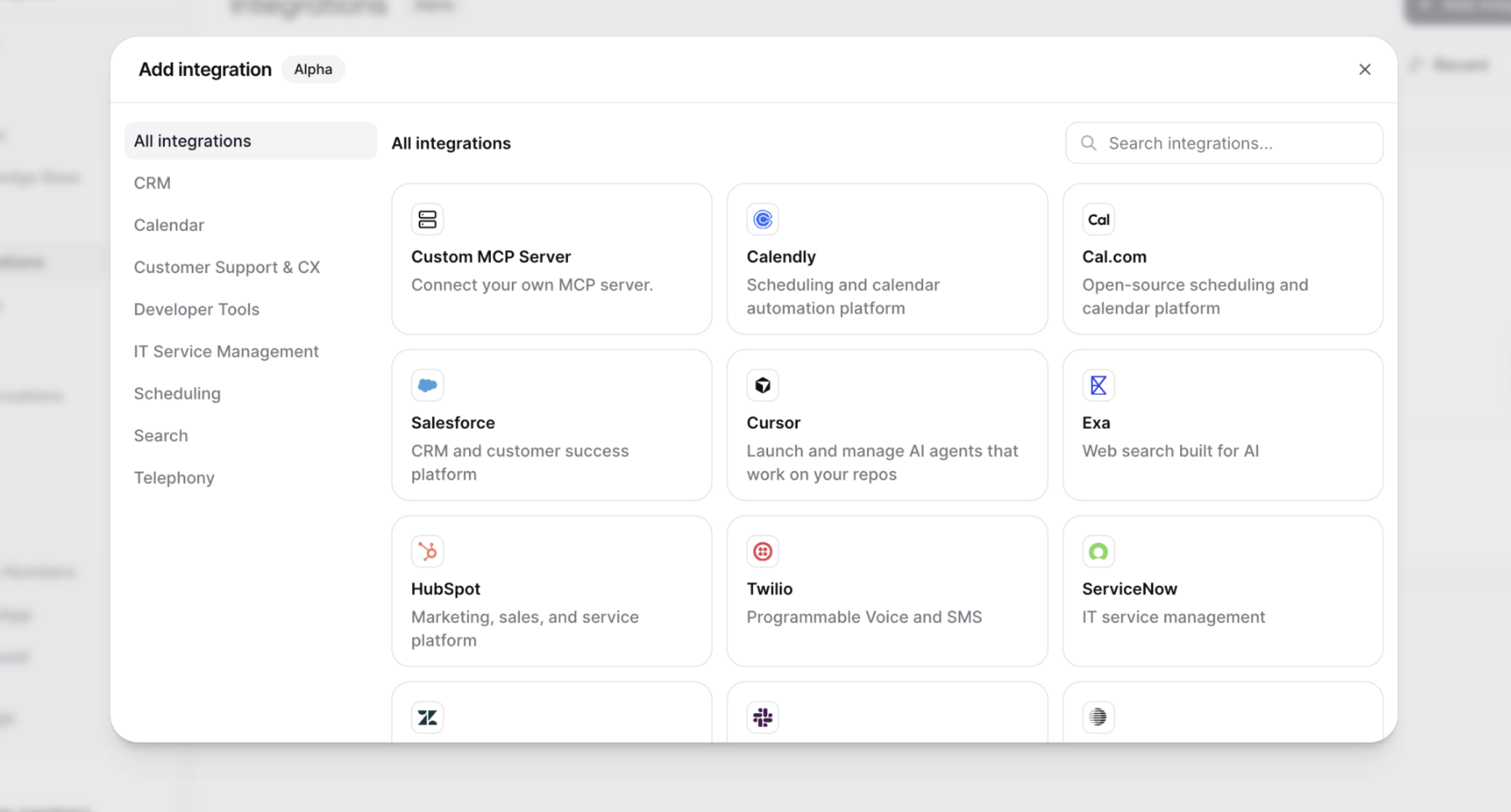
- Name: Second Brain OS MCP. Description: tools and skills from the Second Brain OS
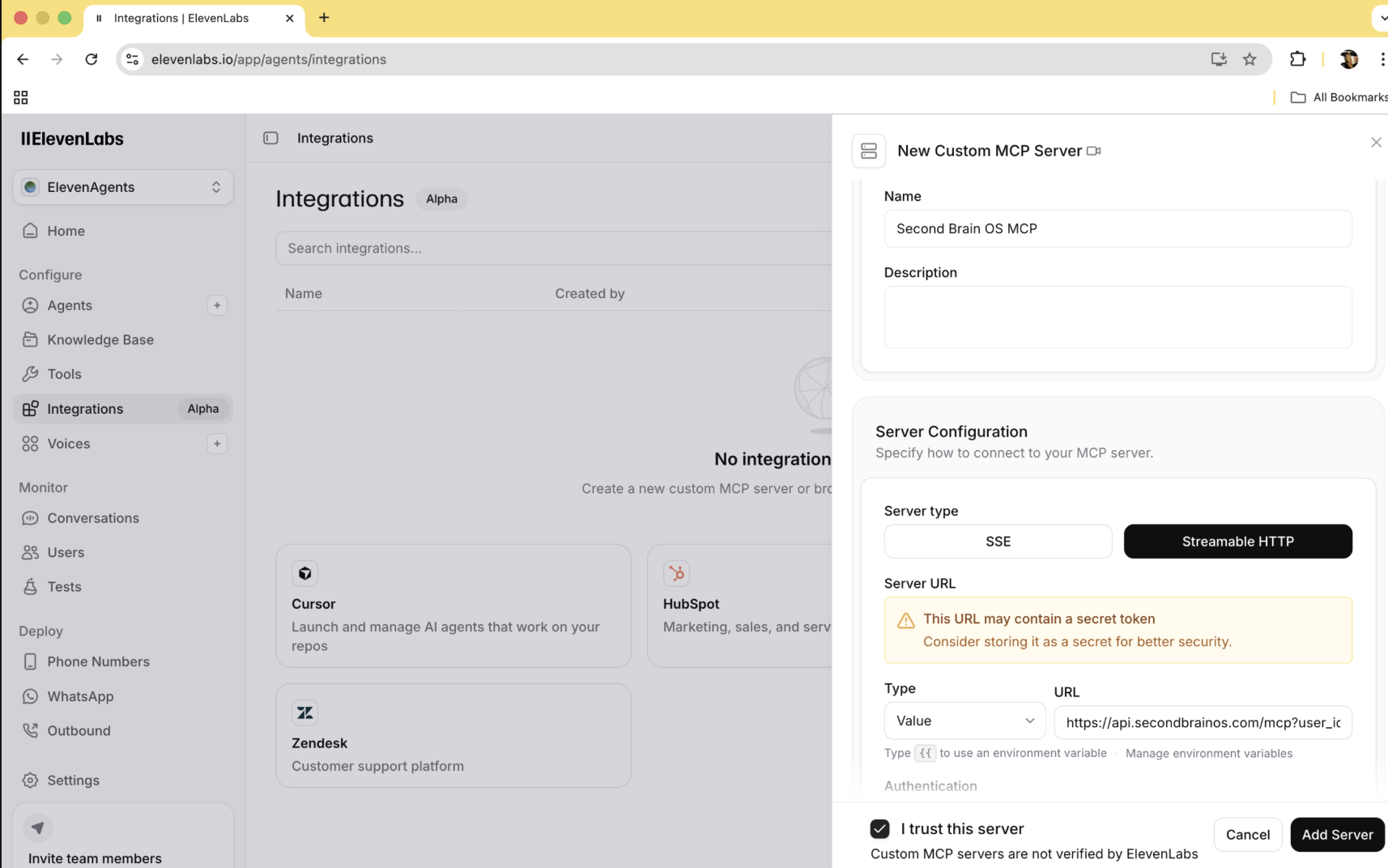
- Server type: Streamable HTTP (very important, it is the only kind Second Brain OS supports)
- URL: copy the ElevenLabs MCP URL from your Second Brain OS profile
- Authentication: none. You will see a warning that the URL might contain a secret token. It does not; it contains only your user ID so Second Brain OS knows which account is calling. The real authentication goes in the header, next
- HTTP headers: add a header named Authorization, value from the environment variable you created
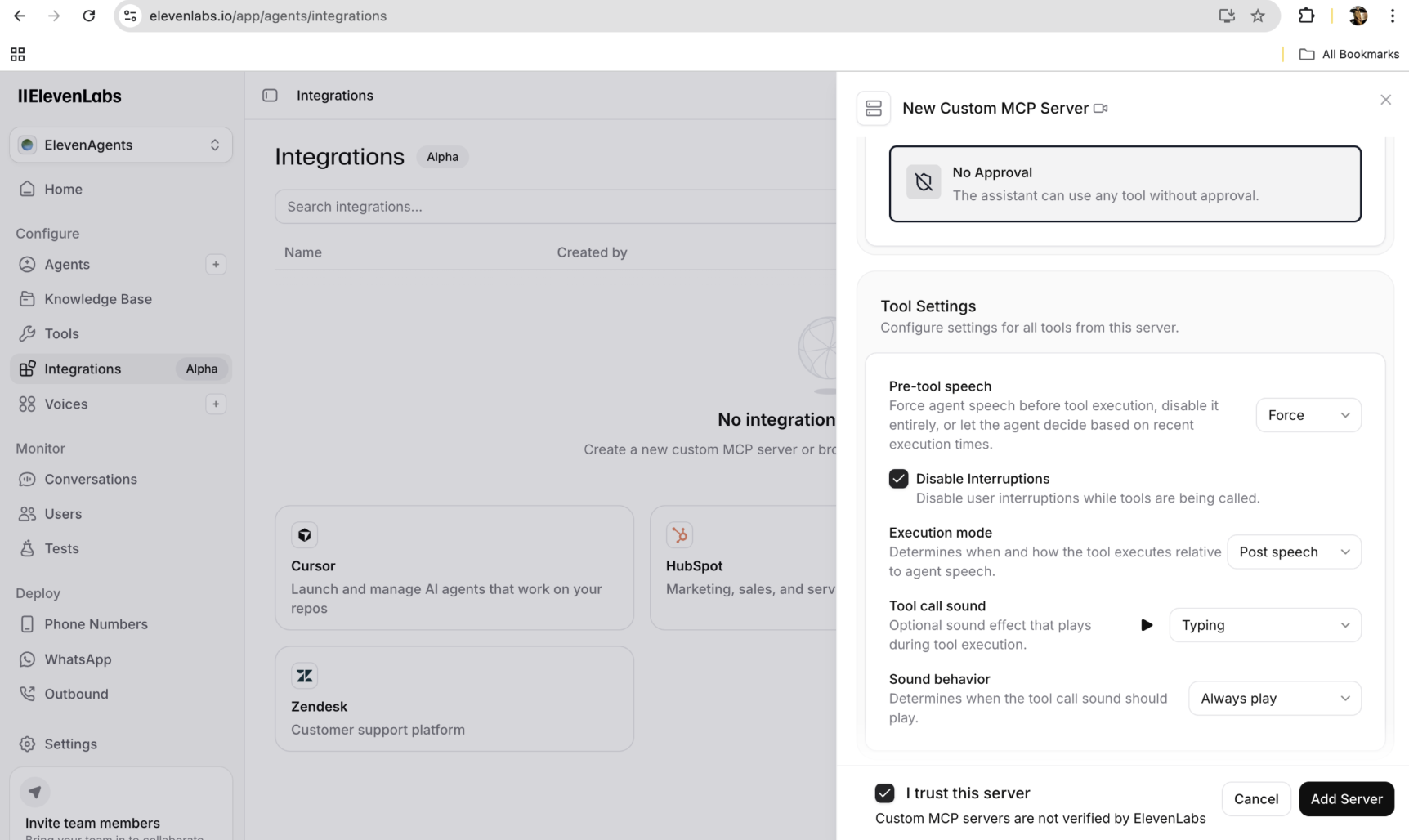
- Tool approval mode: no approval
- Pre-tool speech: force. Interruptions: do not allow disabling during execution
- Execution mode: immediate. Tool call sound: none
- Tick “I trust this MCP server”, press Test connection, and you should get a green. Then Add server

5d: Wire it to your agent
Open the voice agent you configured yesterday:
- Paste your most up-to-date system prompt from the Second Brain OS dashboard (the with-tools version)
- Add one line: always check availability and book slots in the caller’s time zone; never report a slot in a time zone different from the one you intend to book
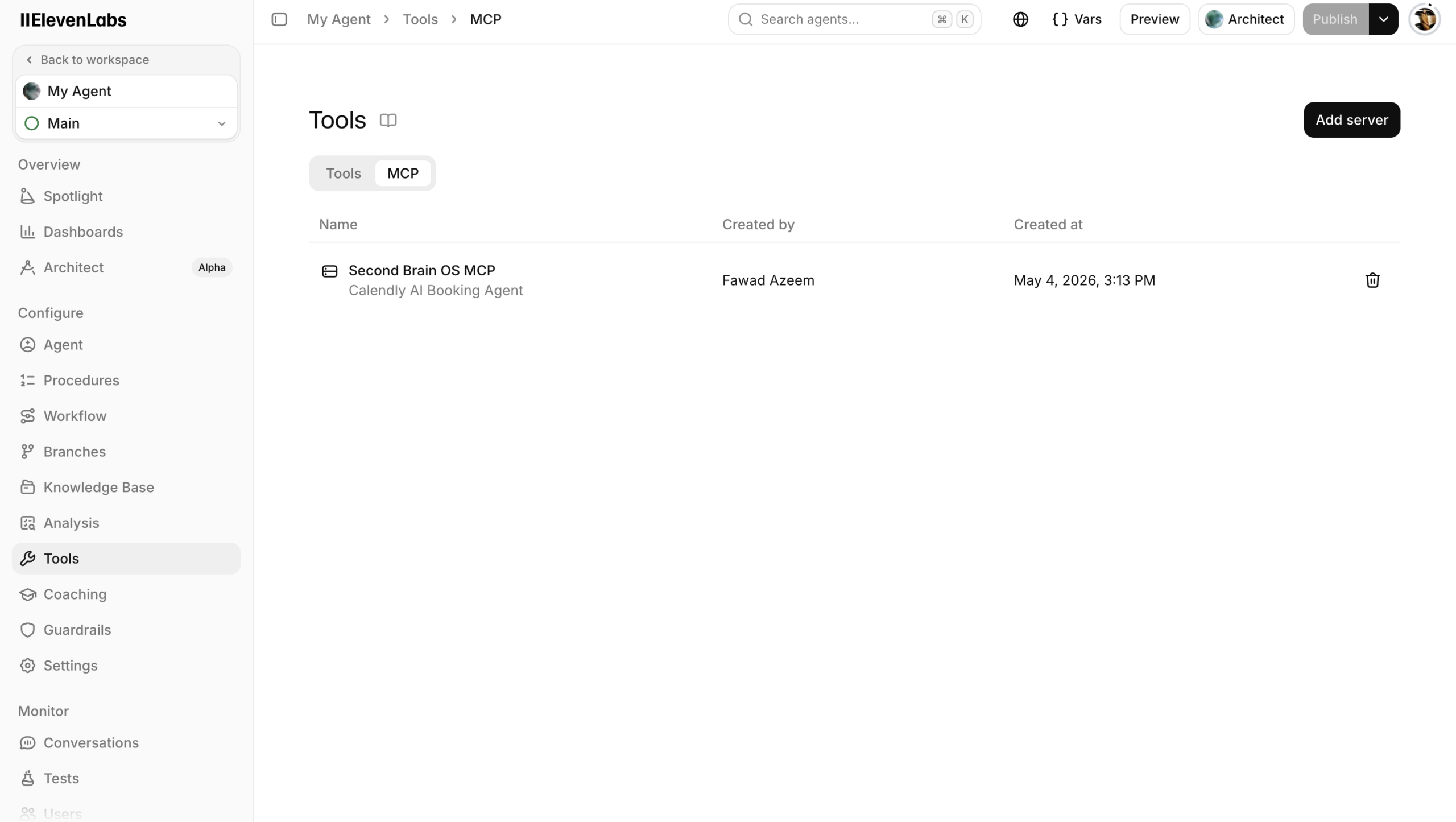
- Under Tools → MCP, add the Second Brain OS MCP server
- Sanity check: the user ID shown in the connection matches the one in your Second Brain OS profile. (Handy to know: your user ID is also the first part of your API key, everything before the
:.)
Then call it from the preview. Mine checked tomorrow’s openings, offered slots in Pakistan time, confirmed the email spelling, took a phone number with country code, hit the same date-format error once, retried, and confirmed the booking, which landed on both calendars at the right local times.
Common voice issues and their fixes:
- The AI talks over the caller: add “never talk over the caller” to your prompt and set eagerness to patient in the voice settings
- Weird tonality or phrasing: raise the voice stability setting and adjust similarity
- Over-qualifying before booking: update your prompt to lock in the appointment with minimal questions
After a test call, verify the data trail too: the contact was created, the appointment is linked to the right contact, and (if you own the upgrade) a reschedule and a cancel flow through correctly.
What you have now
Yesterday your agent could talk. Today it has hands: it checks when you are genuinely free, books into the right slot, and (with the upgrade) searches, reschedules and cancels, in natural conversation, in each party’s own time zone, on web, voice, Instagram and WhatsApp. The hard work was yesterday; today was mostly connecting things that work out of the box.


