You’ve just upgraded from “books appointments” to “owns the calendar.” Up until now your AI handled availability and bookings. From today it handles every reschedule, every cancellation, and every “what time was I in for?” call too. Same agent, same voice, same web widget. Three more tools.
Where are you starting from?
Coming from the Availability + Booking upgrade? Your SBOS profile, Calendly account, and the first two tools (getCalendlyAvailability, createCalendlyContactMeeting) are already configured. Today’s job is to (1) decide which of the three new tools (searchCalendlyMeetings, updateCalendlyMeeting, cancelCalendlyMeeting) should be active, and (2) update your humaniser prompt so the AI knows how to handle reschedule and cancel conversations naturally.
Starting fresh? You’ll need the Calendly setup guide first to connect your Calendly account and configure SBOS. Come back here once that’s done.
Step 1: Identify Your Scenario
You now have 5 Calendly tools: availability, booking, search, reschedule, and cancel. Not all of them need to be active on your deployed agent. It depends on how your business handles appointments.
Scenario A: One service, one calendar: You offer a single bookable event type (e.g. “30 Minute Consultation”). Every booking lands in the same calendar.
Scenario B: Multiple services, one calendar: You offer several services at different prices and durations (e.g. haircut, colouring, consultation), but they all land in your calendar.
Scenario C: Multiple services, multiple calendars: You have a team where each specialist has their own calendar and event types. If this is you, you likely need Specialists & Services Routing. The next tier up.
Step 2: Choose Your Automation Level
Full automation: The AI handles booking, rescheduling, and cancellation on behalf of customers.
Booking only: The AI books appointments, but reschedules and cancellations are handled manually by you or your staff.
Step 3: Set Tool Visibility
Log in at secondbrainos.com, navigate to your tools, and set visibility to Public and status to Active for each tool according to the table below.
Full Automation
| Tool | Scenario A | Scenario B |
|---|---|---|
getCalendlyAvailability |
Public | Public |
createCalendlyContactMeeting |
Public | Public |
searchCalendlyMeetings |
Private | It depends |
updateCalendlyMeeting |
Public | Public |
cancelCalendlyMeeting |
Public | Public |
Scenario A: searchCalendlyMeetings stays Private. There’s only one service, so reschedule and cancel tools default to the customer’s soonest upcoming appointment by email. No search needed.
Scenario B: It depends on whether your customers typically have multiple active bookings at the same time. A salon client might have a haircut Tuesday and a colouring Friday. A dental patient might have a cleaning and a crown fitting in the same month. A consultant’s clients, on the other hand, usually only have one session booked at a time.
Ask yourself: Do my customers regularly have more than one upcoming appointment with me? If yes, set searchCalendlyMeetings to Public so the AI can pull up their bookings and confirm which one to change. If no, leave it Private.
Booking Only
| Tool | Scenario A | Scenario B |
|---|---|---|
getCalendlyAvailability |
Public | Public |
createCalendlyContactMeeting |
Public | Public |
searchCalendlyMeetings |
Private | Private |
updateCalendlyMeeting |
Private | Private |
cancelCalendlyMeeting |
Private | Private |
Changes take effect immediately. No redeployment needed. You can adjust visibility at any time.
Step 4: Update Your Humaniser Prompt for Reschedule & Cancel
Your existing humaniser prompt was written for booking conversations. It doesn’t know how to handle “I need to move my Tuesday appointment” or “Can you cancel my Friday slot?” properly. You don’t need a new prompt. Just add a short snippet to your existing one, scoped to your scenario.
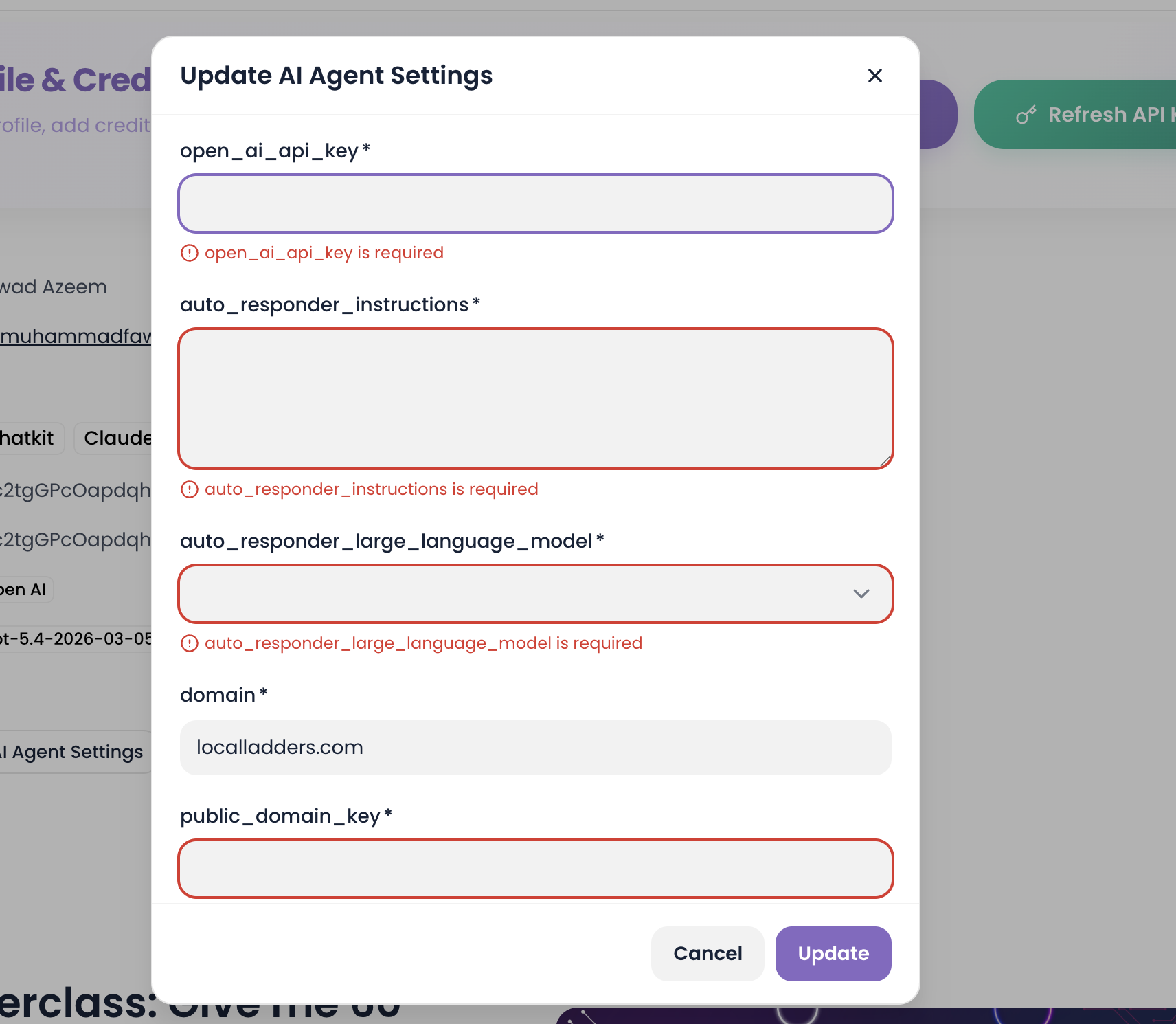
Paste your snippet into both places:
- Your SBOS profile →
auto_responder_instructions
- Your ElevenLabs agent → system prompt field
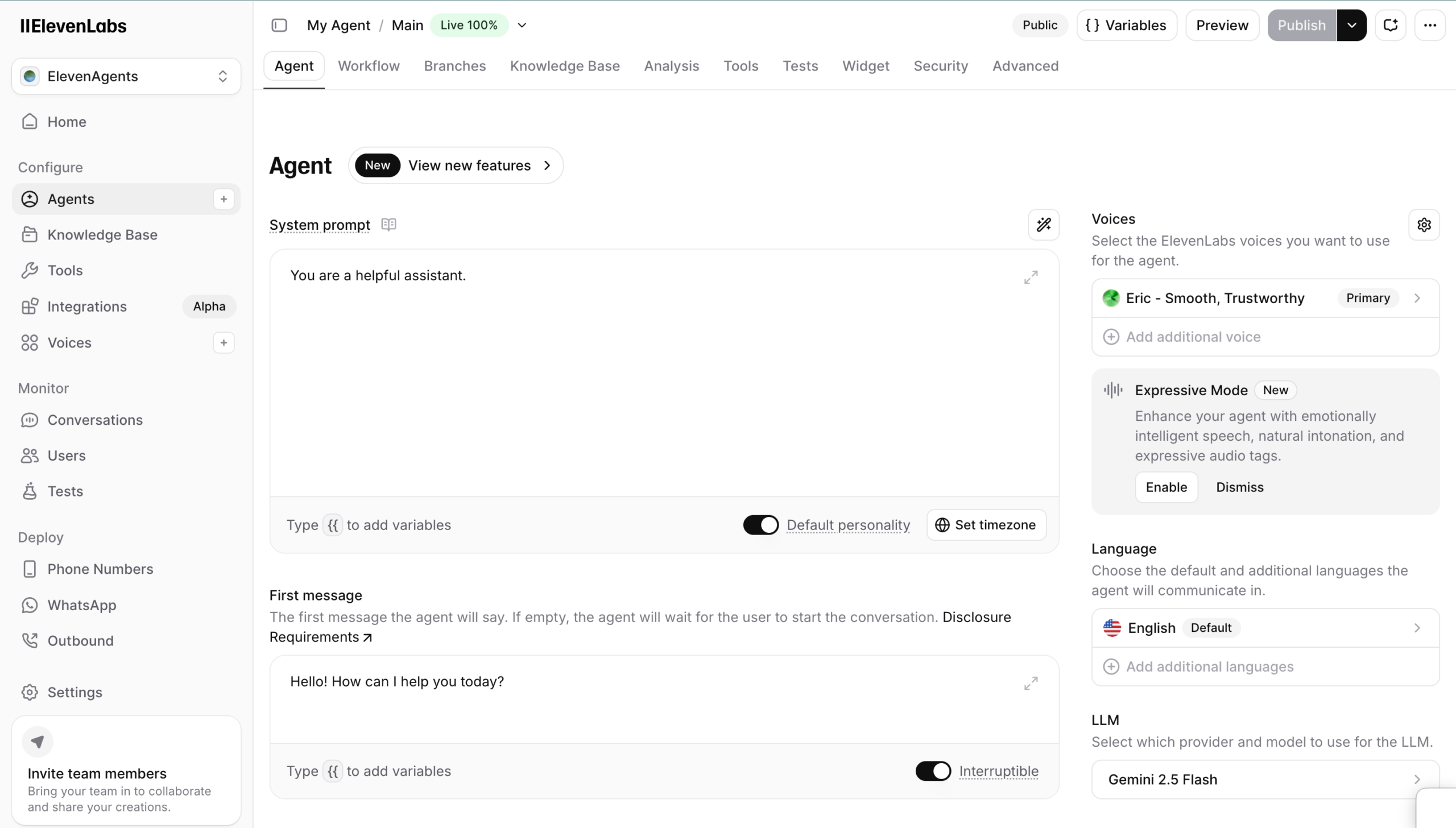
The snippet goes near the bottom of your prompt, just above the personality and conversation guidelines section (the AI pays more attention to what comes last).
Snippet for Scenario A, Single service, one calendar
When a customer wants to reschedule or cancel:
- Ask for the email they booked under.
- Read back the soonest upcoming appointment on that email and confirm it's the right one before making any change.
- For reschedules, offer 2–3 alternative times from availability and only proceed once the customer picks one.
- For cancellations, confirm the cancellation took effect and offer to rebook if they'd like.
Snippet for Scenario B, Multiple services, one calendar
When a customer wants to reschedule or cancel:
- Ask for the email they booked under, plus the service they're asking about (e.g. haircut, colouring, consultation) if they don't volunteer it.
- If the customer has more than one upcoming appointment with you, list all of them by date and service, and ask which one they want to change. Don't assume.
- Read back the appointment date, time, and service before making any change.
- For reschedules, offer 2–3 alternative times for the same service and only proceed once the customer picks one.
- For cancellations, confirm the cancellation took effect and offer to rebook if they'd like.
- If more than one specialist offers the same service the customer is asking about, the AI checks each specialist's availability for that single service in parallel and presents options together — never batching multiple services into one comparison
Snippet for Scenario C, Multiple services, multiple calendars (team)
When a customer wants to reschedule or cancel:
- Ask for the email they booked under, the service, and the specialist they were booked with if they don't volunteer it.
- Look up their upcoming appointments. If they have more than one, list each one with the date, time, service, and specialist. Ask which one they want to change.
- Read back the full booking. Date, time, service, specialist. Before making any change.
- For reschedules, offer 2–3 alternative times with the same specialist for the same service. If the specialist has no availability in the customer's preferred window, offer the next available specialist for the same service and confirm the customer is okay with the swap before proceeding.
- For cancellations, confirm the cancellation took effect and offer to rebook with the same or a different specialist.
- If more than one specialist offers the same service the customer is asking about, the AI checks each specialist's availability for that single service in parallel and presents options together — never batching multiple services into one comparison
How reschedule and cancel actually work under the hood
Both updateCalendlyMeeting and cancelCalendlyMeeting accept an email and act on the soonest upcoming appointment for that email. So the email itself is the verification. Changes only ever affect appointments booked under that email. The snippets above add a verbal read-back step on top of that, which is usually all the verification you need. If your business needs stricter checks (e.g. confirming a phone number or membership ID), add it to the snippet.
What’s Next
You’ve got full lifecycle control over your bookings. Your AI handles availability, booking, search, reschedule, and cancel. Every change-of-plan call ends with the receptionist instead of on your desk.
If you grabbed the full system, your next email lands tomorrow with the final upgrade, Step 6 of 6, specialist and service matching for teams.
If you’re a single-operator business and your customers all book the same service, you’re done. The full lifecycle is everything you need.
If you have a team where each specialist has their own calendar and services, the next upgrade routes every caller to the right person automatically: Get specialist & service matching →


