This is it. The last piece. You started with an AI that answered questions. Then it booked appointments. Then it handled reschedules and cancellations.
Today it learns your entire team. Who does what, who’s bookable, what each person charges. And routes every single caller to the right person for the right service. After this, your receptionist runs itself.
Before You Start: Calendly Plan Requirements
You need a Calendly plan that supports multiple users — Standard, Professional, Teams, or Enterprise all work. The free plan won’t, because it’s single-user only and there’s no team to route bookings across.
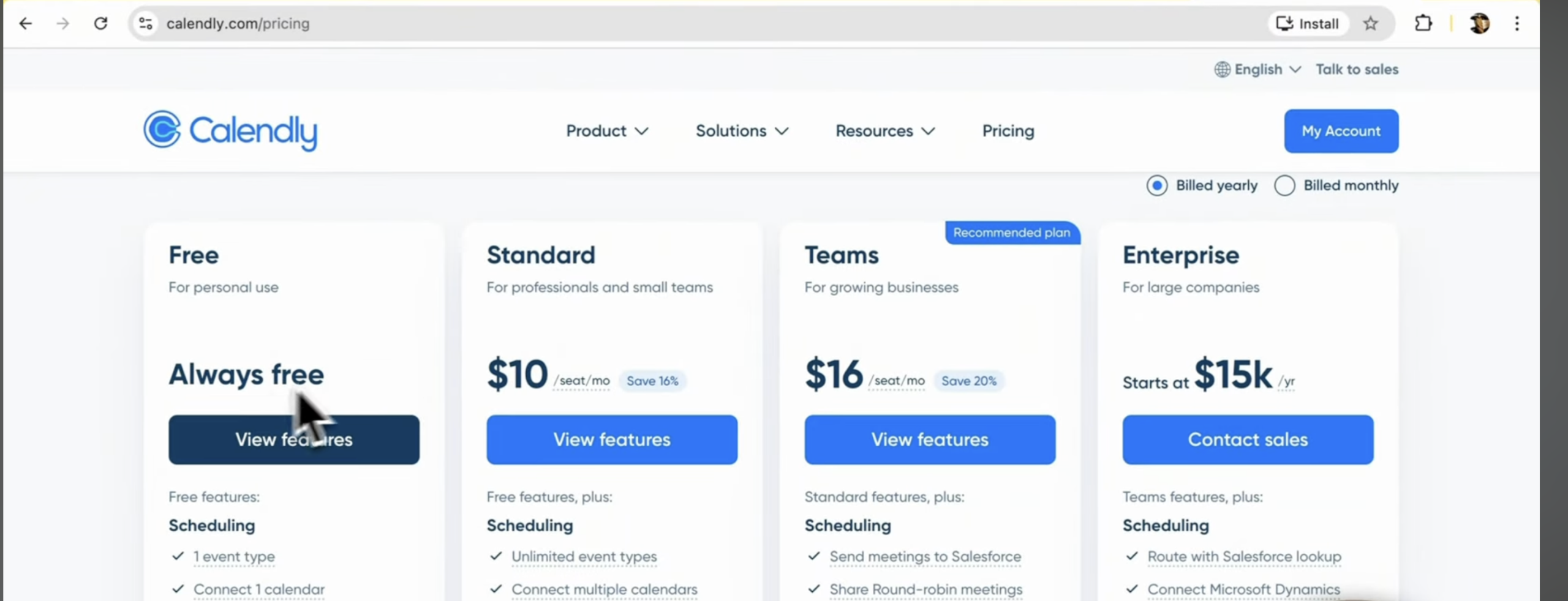
Not sure what plan you’re on? Go to calendly.com and click your plan name in the top right. You don’t need team-managed event types. The setup assistant creates per-person event types directly on each specialist’s calendar as part of registration, owned by that specialist (not the connected admin account) — so the agent can route to a unique person per booking.
The connected Calendly account must be an admin or owner of the organization for this — if it isn’t, the assistant will surface a 403 and you’ll need to either reconnect with an admin token or create the event types manually. So whether you’re on Standard or Teams, the AI ends up with the same routing capability. You also need every specialist already added to your Calendly organization with their invitation accepted. The setup assistant will pull your team roster from Calendly, so anyone who isn’t there yet won’t appear.
If your specialists meet clients at a shared physical address (salon, clinic, office), make sure your company address is on file in your SBOS profile before you start. The assistant uses it as the default location for physical event types so you don’t have to retype the venue per service.
If your specialists meet clients at a shared physical address, your company address must be on file in your SBOS profile before you start the setup assistant. The assistant checks for it during Discovery and will pause and ask you to provide it if it’s missing — this blocks progress until resolved. Go to your SBOS profile and update your company address now if you haven’t already.
If specialists work from different addresses, you can override it per service. If everything is virtual (Google Meet or Zoom), you can skip this — the assistant will set the location accordingly. Heads up on Zoom: the connected Calendly account must already have the Zoom integration enabled inside Calendly itself, otherwise Calendly rejects the meeting link request.
Launch the Calendly Teams Setup Assistant
The assistant runs everything below for you. You don’t configure tools manually, you don’t write the system prompt, you don’t link specialists to Calendly calendars by hand. The assistant does all of it interactively.
Your job is to answer questions about your business and confirm the result.
This guide exists so you know what’s about to happen at each stage. To launch it:
- Install Node.js (one-time, free, ~5 minutes)
- Install Claude Desktop (one-time, free, ~5 minutes)
- Get your personalised SBOS MCP command: go to secondbrainos.com/dashboard/my-agents/. The page shows the exact
npx secondbrainos-mcp-server@latest <your-key>command for your account. Copy it.
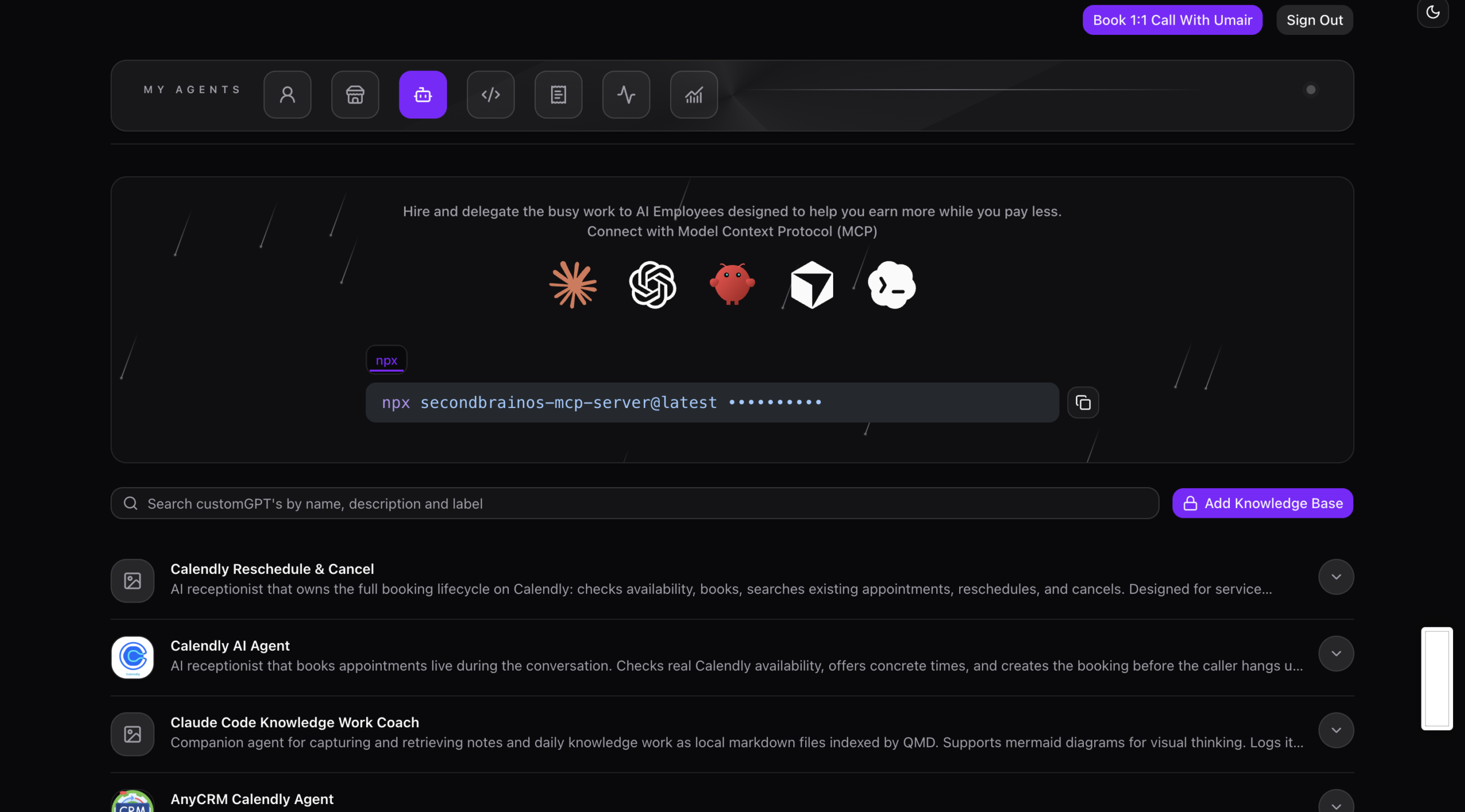
- Run the command in terminal and it will install the Second Brain OS MCP server
- In Claude Desktop settings, make sure the Calendly connector is turned OFF before starting — see the warning below
- Attach the Calendly Teams Setup Agent and start a new conversation
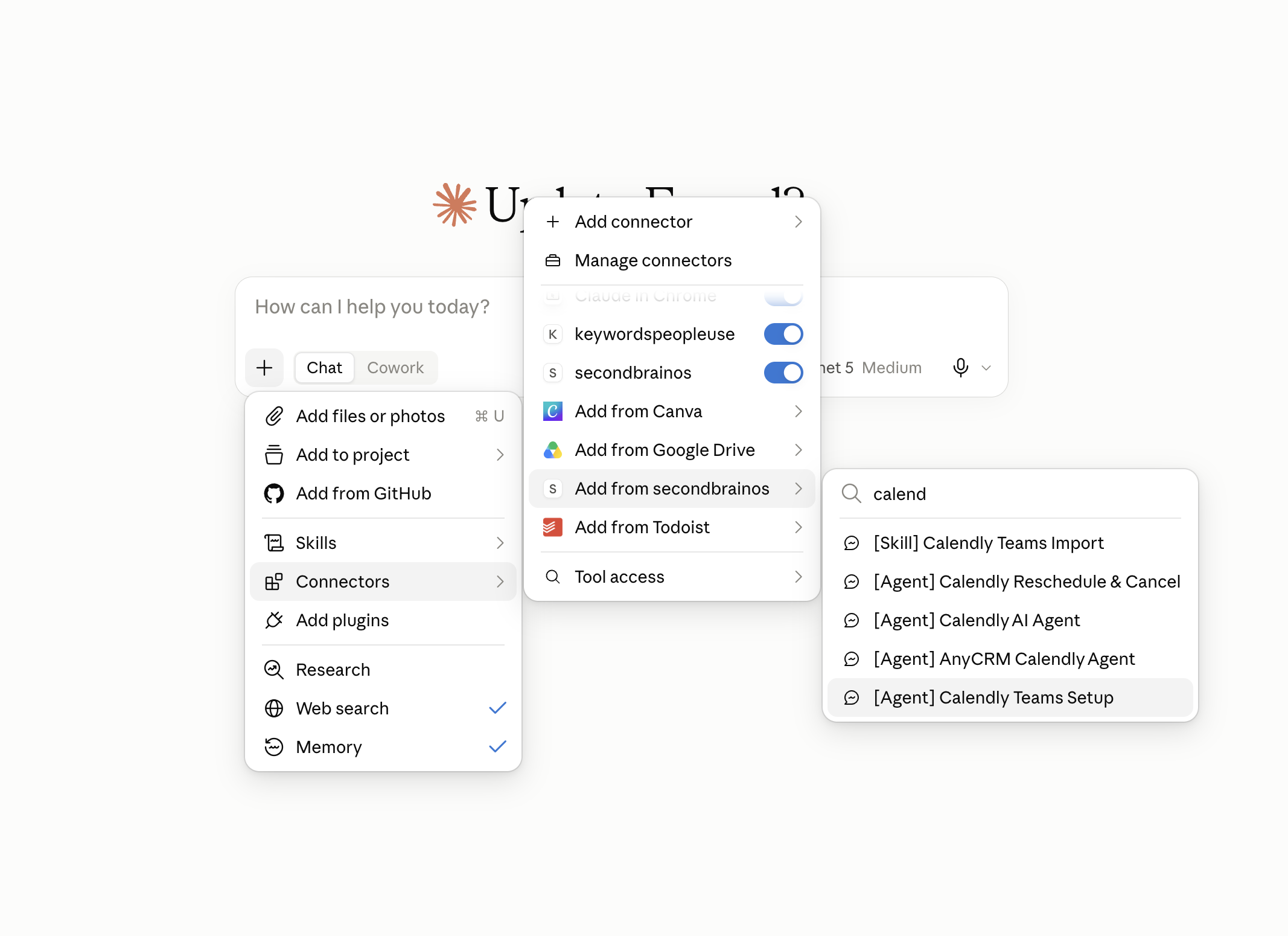
Before starting the setup assistant, go to Claude Desktop → Settings → Connectors and make sure the Calendly connector is turned off. If it’s on, it conflicts with the setup tools and causes unexpected behaviour during the workflow. Turn it back on after setup is complete.
Once you’ve attached the agent, start the conversation with this message:
“I need to set up Calendly Teams for my [business type]. I have [number] specialists and I want my AI agent to route bookings to the right person automatically.”
For example: “I need to set up Calendly Teams for my hair salon. I have two specialists and I want my AI agent to route bookings to the right person automatically.”
If you’ve run this setup before — whether as a test or a previous configuration — ask the agent to delete your existing Firestore employee records before starting Workflow 1. Just say:
“Please list and delete all existing Firestore employee records before we begin.”
The agent will show you what’s there and delete them. Starting with stale records causes duplicate entries and verification errors.
Where are you starting from?
Coming from the previous upgrade? Your Calendly account, SBOS profile, and the first 5 booking tools are already configured. The assistant adds the team & service routing layer on top — registering your specialists, their services, and generating a richer system prompt that knows who does what best.
Starting fresh? You’ll need the Calendly setup guide and the tool visibility guide first. Come back here once your Calendly account is connected to SBOS.
What the Assistant Walks You Through
The setup runs across two workflows. The assistant handles both automatically — you just answer questions and confirm results.
Workflow 1: Calendly Teams Import
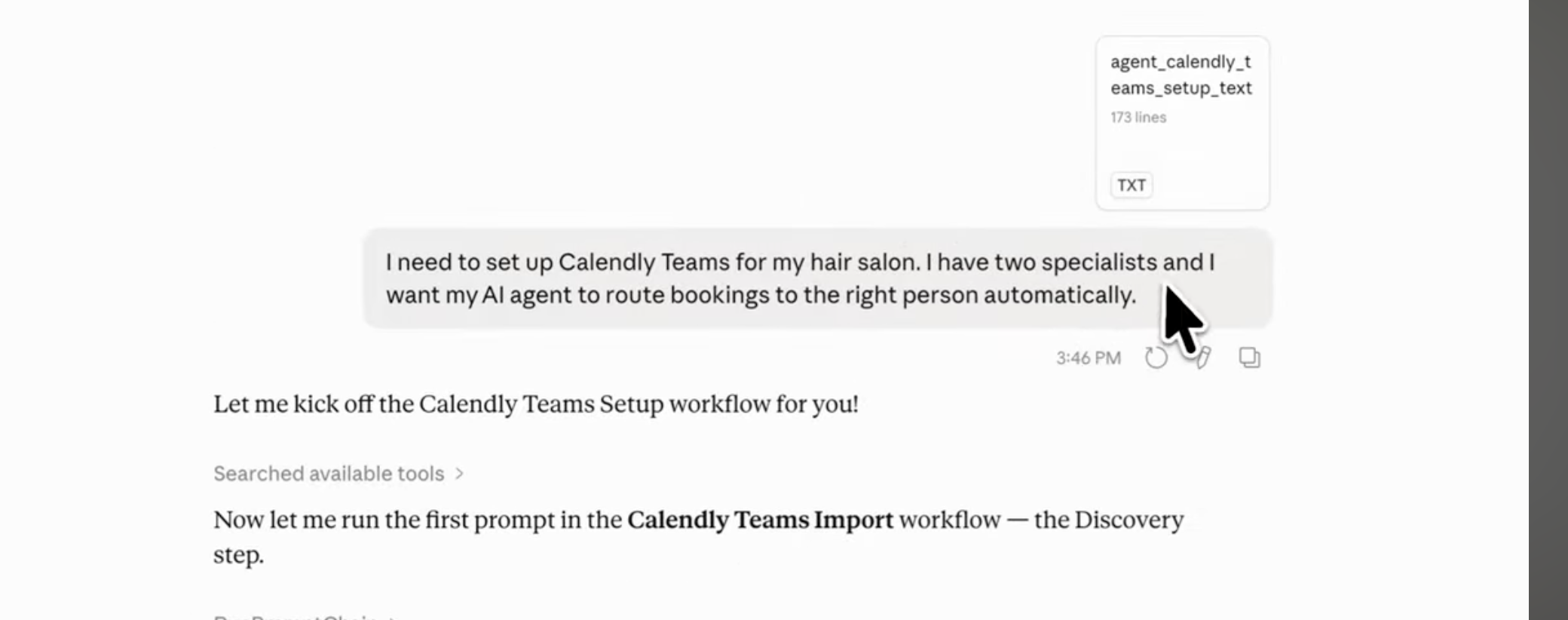
This is the data setup. The assistant pulls your Calendly team roster, registers each specialist in Firestore, creates their services as event types on their individual Calendly accounts, and verifies everything end to end.
Step 1: Discovery
The assistant checks prerequisites — your company address, your Calendly org members, and whether your booking and rescheduling agents are already working. It shows you the full roster of team members it found and asks you to confirm which ones are bookable specialists.
Step 2: Employee Import
For each confirmed specialist, the assistant collects:
- Name, work email, phone (with country code)
- Role — from a fixed list of accepted values (see below)
- Bio — short description of their specialties (optional)
- Expertise — what they’re qualified for (optional but useful for matching)
- Headshot URL (optional)
The Role field only accepts values from a fixed list. If you enter something outside this list the agent will flag it and ask you to pick the closest match. Choose the one that best fits your specialist:
Real Estate Agent, Lawyer, Consultant, Dentist, Dermatologist, Psychologist, Physiotherapist, Nutritionist, Esthetician, Personal Fitness Trainer, Career Coach, Architect, Interior Designer, Financial Advisor, Accounting and Tax Specialist, Academic Tutor, Caterer, Event Decorator, Photographer/Videographer, Florist, Handyman, Cleaner, Babysitter, Musician, Fashion Designer, Software Automation Expert, Writer, Digital Marketer
For example — a barber or hair stylist would select Esthetician as the closest match. A solicitor would select Lawyer.
Step 3: Event Type Setup
The assistant creates each specialist’s bookable services as Calendly event types — directly on that specialist’s individual account, not the admin account. For each service you provide the name, price, and duration. The assistant handles the rest including location assignment.
Step 4: Verification
The assistant runs an end-to-end check confirming each specialist’s Firestore record is correctly linked to their Calendly account, and every service UUID is properly mapped. Any issues are fixed on the spot.
Workflow 2: Booking Flow Configuration
This is the intelligence setup. The assistant determines how your AI agent should think, which tools it gets access to, and assembles the complete system prompt.
Step 1: Scenario Assessment
Your AI’s configuration depends on how your business operates. The assistant asks:
- How many specialists handle bookings?
- How many different services do you offer?
- Should the AI handle reschedules and cancellations, or just booking?
Your answers map to one of three scenarios. Find yourself below.
Scenario A: Single Specialist, Single Service
Best for a solo operator with one bookable service. The AI auto-resolves everything. No service matching, no specialist routing.
| Industry | Example |
|---|---|
| Barber shop | One barber, one service: “30-min Haircut” |
| Consultant | Solo advisor: “60-min Strategy Session” |
| Personal trainer | One trainer: “45-min 1:1 Session” |
| Therapist / Counsellor | Solo practice: “50-min Session” |
Scenario B: Single Specialist, Multiple Services
Best for a solo operator offering several services at different prices and durations. The AI must identify which service the customer wants and route to the right one.
| Industry | Services in Calendly | Customer Says | AI Receptionist Does |
|---|---|---|---|
| Salon / Barbershop | “30-min Haircut”, “60-min Colour & Cut”, “90-min Bridal Package”, “15-min Beard Trim” | “I need a colour and cut.” | Identifies the 60-min Colour & Cut, checks availability for that duration, and books. Without service matching it defaults to the first event type — probably the 30-min haircut — and the customer shows up for the wrong service. |
| Dental practice | “15-min Cleaning”, “30-min New Patient Consultation”, “60-min Root Canal”, “45-min Crown Fitting” | “I need to come in for a crown.” | Identifies the 45-min Crown Fitting and offers only those slots. |
| Law firm | “15-min Free Phone Screening”, “30-min Paid Consultation”, “60-min Case Review” | “I’d like to talk to someone about my case before committing.” | Routes to the free 15-min screening, not the paid consultation. |
| HVAC / Plumbing | “30-min Diagnostic Visit”, “60-min AC Installation Consult”, “15-min Follow-Up Check” | “My furnace stopped working.” | Books a 30-min diagnostic visit. |
| Fitness / Personal training | “30-min Free Trial”, “60-min 1:1 Training”, “45-min Group Class” | “I want to try a class before signing up.” | Books the free trial, not the paid 1:1. |
| Consulting / Coaching | “15-min Discovery Call”, “60-min Strategy Session”, “90-min VIP Deep Dive” | “I just want to see if we’re a good fit.” | Offers discovery call slots. If they say “Actually, I’m ready to go deep,” it switches to the 90-min VIP slots. |
| Tattoo studio | “15-min Flash Tattoo”, “60-min Custom Design Consult”, “120-min Full Session” | “I want to talk about a custom sleeve.” | Books the 60-min Custom Design Consult. Not the flash session or the full tattooing slot. |
| Veterinary clinic | “15-min Vaccination”, “30-min Wellness Exam”, “45-min Sick Pet Visit”, “60-min Surgery Consult” | “My dog has been limping for two days.” | Identifies Sick Pet Visit and offers 45-min slots. |
| Photography studio | “15-min Mini Session”, “60-min Portrait Session”, “120-min Wedding Consult” | “We’re getting married next spring.” | Books the 120-min Wedding Consult, not the portrait session. |
| Massage / Physiotherapy | “30-min Targeted”, “60-min Full Body”, “90-min Deep Tissue + Stretch”, “15-min Assessment” | “Stiff neck from sitting at my desk.” | Books the 30-min Targeted Massage. |
| Accounting / Tax prep | “15-min Quick Question”, “30-min Tax Filing Review”, “60-min Business Tax Planning” | “I need help with my small business taxes.” | Books the 60-min Business Tax Planning session. |
| Tutoring / Education | “30-min Trial Lesson”, “60-min Regular Session”, “90-min Exam Prep Intensive” | “My son has an SAT coming up.” | Books the 90-min Exam Prep Intensive. |
| Wedding planner | “15-min Availability Check”, “45-min Planning Consultation”, “90-min Full Design Meeting” | “We just want to see if you’re available for our date.” | Books the 15-min Availability Check. |
| Auto mechanic / Body shop | “30-min Oil Change”, “60-min Full Inspection”, “15-min Estimate Walkthrough” | “Just need a quick estimate on body damage.” | Books the 15-min Estimate Walkthrough. |
| Real estate agent | “15-min Phone Intro”, “30-min Buyer Consultation”, “60-min Listing Presentation” | “I’m thinking of selling my property.” | Books the 60-min Listing Presentation, not the buyer consult. |
Scenario C: Multiple Specialists, Multiple Services
A team where each member offers some or all services. The AI must match both the service and the specialist.
| Industry | How It Works |
|---|---|
| Salon with 4 stylists | Each stylist has their own cuts, colour, bridal packages. Different prices, different availability. Customer says “I want Sarah for a balayage” → agent finds Sarah’s balayage event, checks her availability, books. Customer says “I just need a haircut with whoever’s free” → agent checks all stylists who do haircuts and presents the soonest options. |
| Dental practice with 3 dentists | Dr. Patel does cleanings and consultations, Dr. Khan does root canals and crowns, Dr. Lee does everything. Patient says “I need a root canal” → agent routes to Dr. Khan. Patient says “Just a cleaning, whoever’s first” → agent checks Dr. Patel and Dr. Lee’s availability and offers the earliest slot. |
| Law firm with multiple attorneys | Each attorney specialises in different areas. Family, criminal, corporate. Caller says “I need help with a divorce” → agent matches to the family law attorney. Caller says “I’m not sure what I need” → agent asks a few questions, matches by expertise. |
| Med spa with several estheticians | Some do injectables, others do facials, one does both. Client says “I want Botox with Megan” → agent routes to Megan’s injectable consultation. Client says “What facials do you offer?” → agent presents the facial services across all estheticians who offer them. |
| Fitness studio with multiple trainers | Each trainer has different certifications, styles, and rates. Member says “I want Jake for strength training” → agent books Jake’s 1:1 strength session. New prospect says “I just want to try a class” → agent finds the next available trial session across all trainers. |
| Consulting firm | Senior consultants at $300/hr, junior at $150/hr, each with different expertise. Client says “I need someone senior for a strategy review” → agent matches the senior consultant with strategy expertise and books their 90-min session. |
Step 2: Automation Level
Some businesses prefer to handle reschedules and cancellations manually — to enforce cancellation policies, charge fees, or have a human review before confirming. The assistant asks:
- Full automation: the AI can reschedule and cancel on behalf of customers
- Booking only: the AI books appointments, but a team member handles reschedules and cancellations
This determines which tools your deployed AI is allowed to use. The assistant sets that up automatically.
Step 3: Service Visibility
The assistant configures which tools are exposed to your deployed agent and which stay private. For Scenario C with Full Automation, five tools are set to public — availability checking, booking, searching, rescheduling, and cancellation. Eight setup-only tools are set to private so they never appear to customers. You don’t touch any of this manually.
Step 4: System Prompt Assembly
This is the final step. The assistant builds a complete custom system prompt for your deployed AI receptionist. It will ask you for:
- Your AI receptionist’s name — choose any name you like (e.g. Luna, Sophia, James). This is the name your agent will use when answering calls
- Business short description — one or two sentences about what your business does
- Operating hours — days and times including timezone
- Dialect preference — e.g. American English, British English
The assembled prompt includes:
- A cached snapshot of every specialist and every service with their Calendly event type UUIDs and pricing — baked directly into the prompt so the agent never needs to look this up at runtime
- Specialist matching rules — how to route by expertise, by name request, or by availability
- Your business name, location, hours, and brand voice
- Conversation rules covering when to ask questions, when to confirm bookings, and how to handle reschedules and cancellations
- Tone, filler words, and pacing so it sounds like a human receptionist
The cached specialist and service data is locked in at the moment of assembly. If you add a specialist, change prices, or add services later — re-run Workflow 1 (Teams Import) and then Step 4 (System Prompt Assembly) to regenerate the prompt with the latest data. Paste the new prompt into your agent settings to apply the update.
How It All Comes Together
Once configuration is complete, your deployed AI receptionist works like this:
Scenario A: A caller says “I’d like to book an appointment.” The agent checks availability and books. No routing logic needed.
Scenario B: A caller says “I need a colour and cut.” The agent looks at its cached service list, matches to “Colour & Cut | $120”, checks availability for that specific service, and books.
Scenario C: A caller says “I want Sarah for a balayage.” The agent looks at its cached specialists list, finds Sarah’s balayage service, checks her availability specifically, and books. If the caller says “Just whoever’s free for a haircut”, the agent checks availability across all specialists who offer haircuts and presents the soonest options.
For reschedules and cancellations with full automation: if your customers typically have only one active booking at a time (always the case in Scenario A, sometimes in B), the agent uses the customer’s email to find their soonest upcoming appointment and reschedules/cancels directly. If customers may have multiple active bookings (always in Scenario C, sometimes in B), the agent searches their bookings first, presents them, and confirms which one before making changes. For booking only: the agent lets the customer know a team member will follow up to handle reschedules and cancellations.
You’re Done
Take a moment. You just built something most service businesses pay agencies thousands for — and it’s not nearly as good as what you have now. Here’s what you’ve put together over the past few days:
- An AI that knows your business: your services, your hours, your tone, your specialists
- A natural-sounding voice agent that picks up calls 24/7 and never goes to voicemail
- A website chat widget that handles enquiries and converts visitors to bookings
- Live availability + booking: every conversation can end with a confirmed slot in your calendar
- Full lifecycle handling: reschedules, cancellations, change-of-plan calls all end with the AI, not on your desk
- Specialist & service routing: every caller gets matched to the right person for the right service, automatically
Your AI receptionist now handles every booking, reschedule, cancellation, and routing decision across your entire team, on every channel, 24 hours a day.
If you have questions, hit reply on any of my emails. If you want to share results, post in the community — I want to hear how it’s going.


